The Watch & Replace Rules feature allows you to set a combination of rules for determining the fund status of investments, and then allows for the applying of those rules to chosen Plans.
Watch & Replace Rules Overview
In your FirmPlus account, you are able to configure a set of Watch and Replace rules for determining the fund status of investments in your Plans. Watch Rules will change a fund's status to W - On Watch List, and Replace Rules will change a fund's status to R - To Be Replaced. When applying your rules to Plans, fund statuses are updated for any fund that meets the conditions of the rules you have configured. An overview of the rules options are below:
Watch Rules
- Number of Consecutive Quarters Failed
- Number of Total Failing Quarters
Replace Rules - Score History
- Number of Consecutive Quarters Failed
- Number of Total Failing Quarters
Replace Rules - Watch History
- Number of Consecutive Quarters on Watch
- Number of Total Quarters on Watch
Note: Replace Rules can be configured based on Score History OR Watch History. These options cannot be used at the same time.
Configure Watch & Replace Rules

To utilize the Watch & Replace Rules feature, you must first configure the rules for your account. No rules are required to be utilized, and you can only have one set of rules configured for your account.
- Log Into FirmPlus
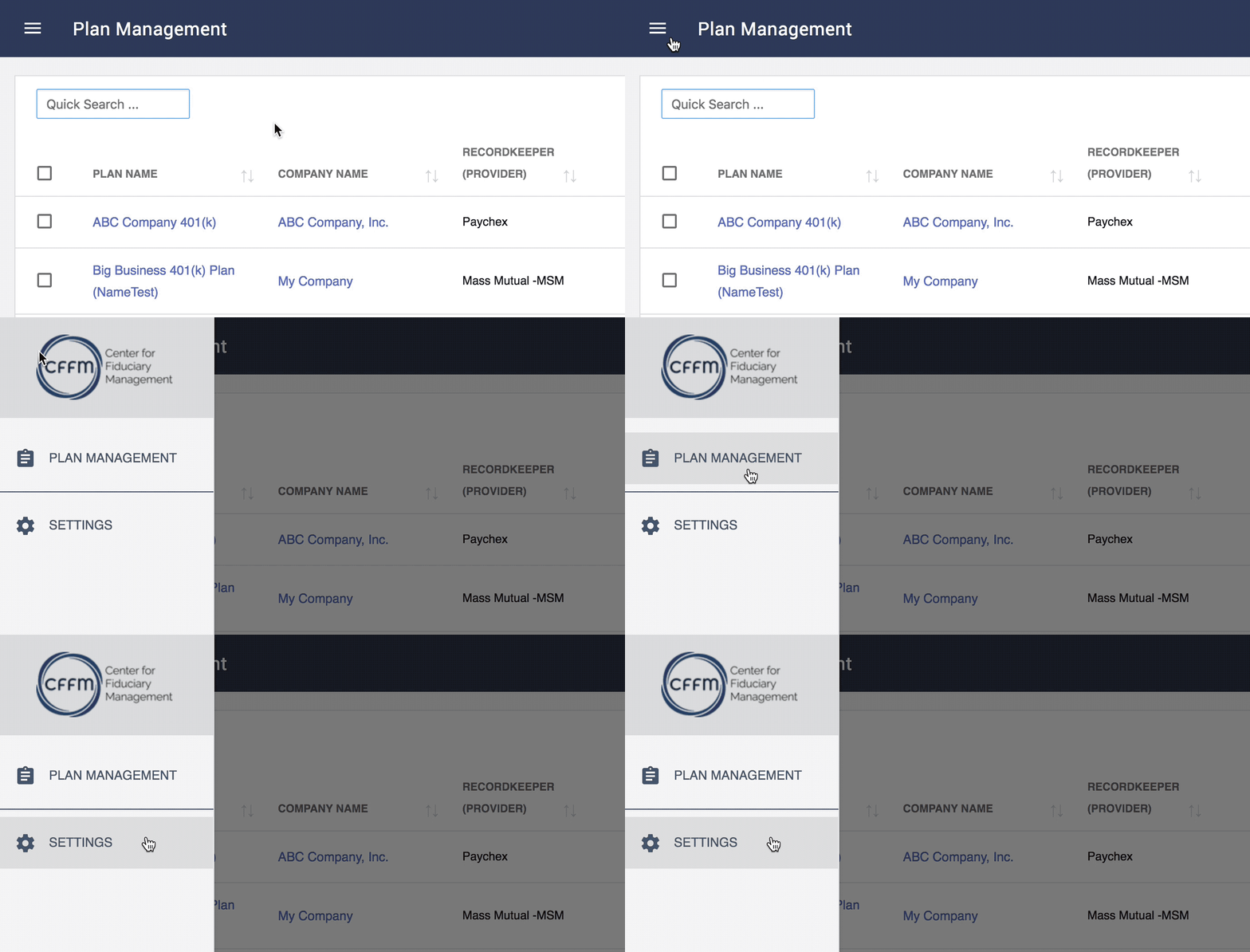
- Click the Menu button in the upper left-hand corner. The menu will expand from the left.
- Click Settings.
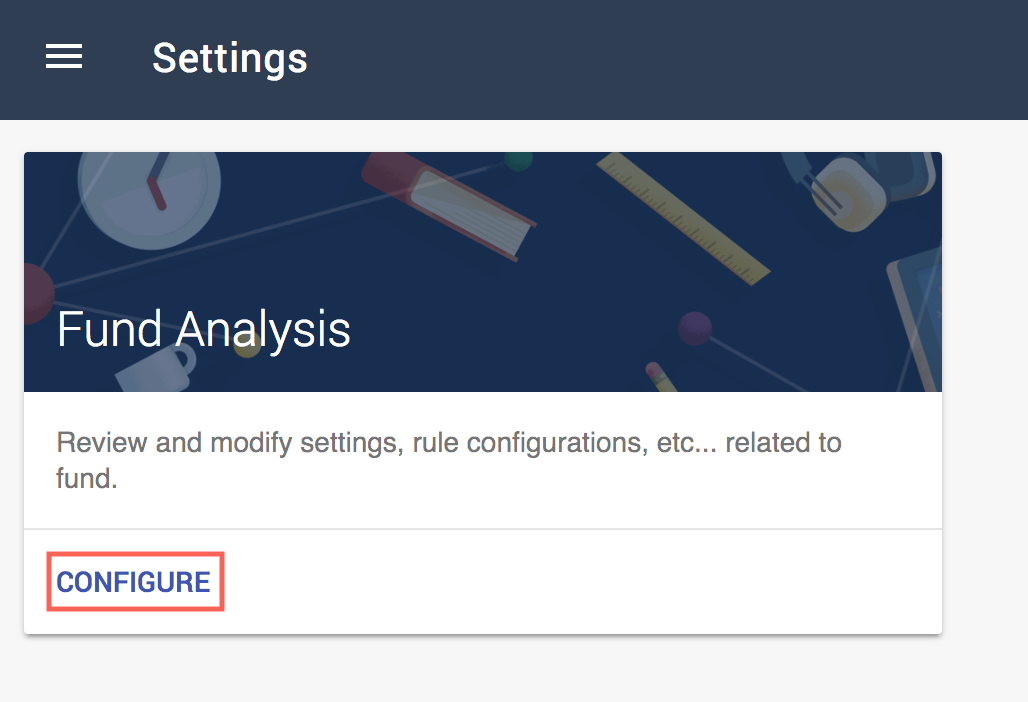
- On the Settings screen, click Configure on the Fund Analysis option. You will arrive on the rules configuration screen.
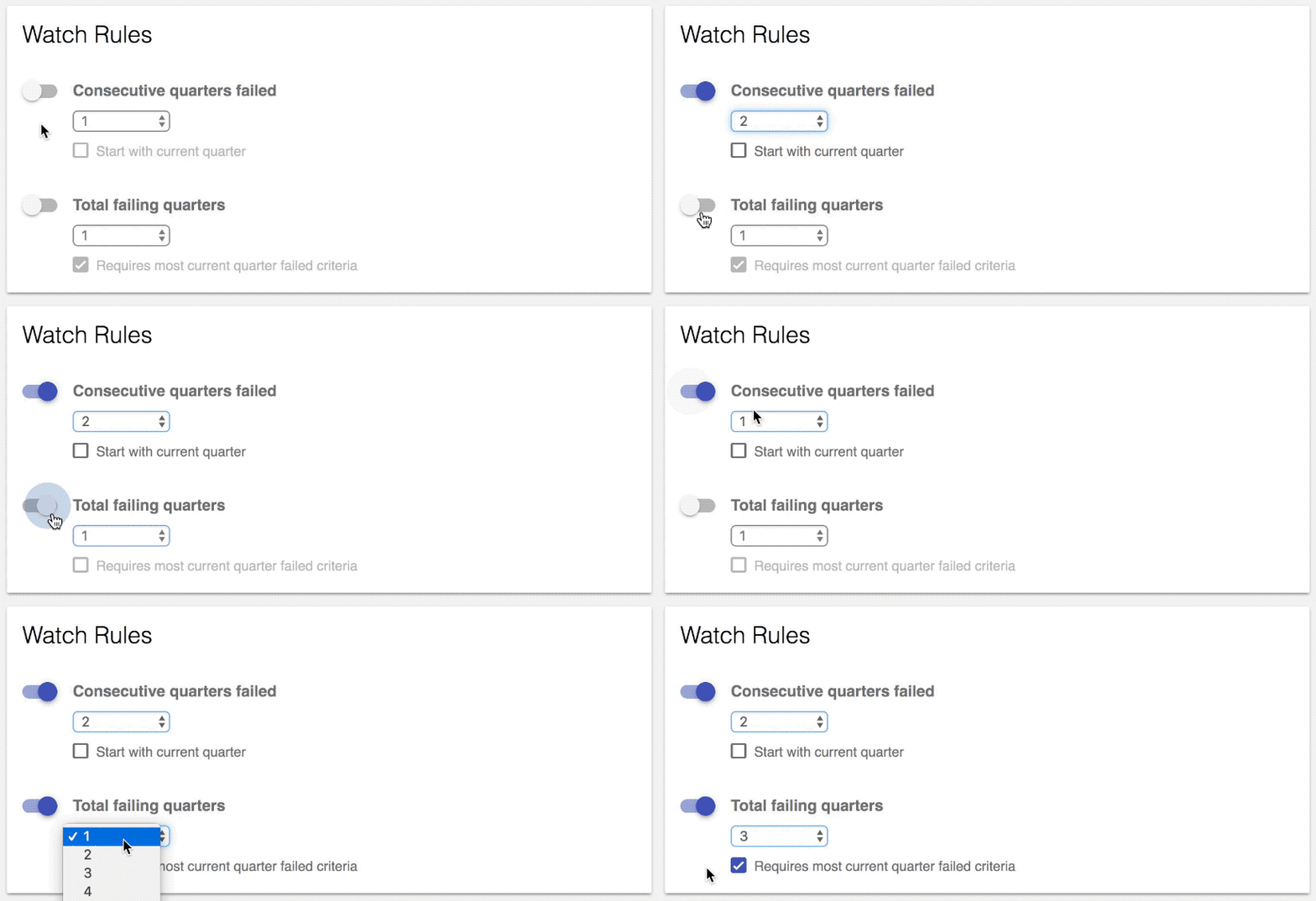
- Enable Watch rules by clicking the slider to enable the rule and choosing an option from the corresponding drop-down. The number chosen in the drop-down will be the number of total or failed quarters required for a fund to have it's fund status changed. You can optionally choose to require the most recent quarter has failed / is included.
- Enable Replace rules by clicking the slider to enable the rule and choosing an option from the corresponding drop-down. The number chosen in the drop-down will be the number of total or failed quarters required for a fund to have it's fund status changed. You can optionally choose to require the most recent quarter has failed / is included.
- You can switch the conditions for Replace Rules between Score History or Watch History using the toggle at the top of the Replace Rules card. Score History uses the fund's score history over time. Watch History uses the fund status history of the fund over time (e.g. quarters where the fund's status was "W - On Watch List".

- You can switch the conditions for Replace Rules between Score History or Watch History using the toggle at the top of the Replace Rules card. Score History uses the fund's score history over time. Watch History uses the fund status history of the fund over time (e.g. quarters where the fund's status was "W - On Watch List".
- After configuring your rules, click Save in the bottom left-hand corner.
IMPORTANT: If you have Plans that belong to multiple FAIDs, you will need to configure Watch & Replace Rules for each FAID.
To accomplish this, use the drop-down toggle beneath the Managing Financial Rules For label to switch between FAIDs associated with your account.
After setting rules for that FAID be sure to click Save. You can then move on to setting up rules for other FAIDs.

Apply Watch & Replace Rules
After configuring your Watch & Replace rules, you can choose to apply those rules to Plans in your account from the Plan List.
- Log Into FirmPlus
- On the Plan List, select Plans you wish to have rules applied to by checking the box to the left of the Plan Name.
- After your selections have been made, click the action icon. A confirmation pop-up will appear.
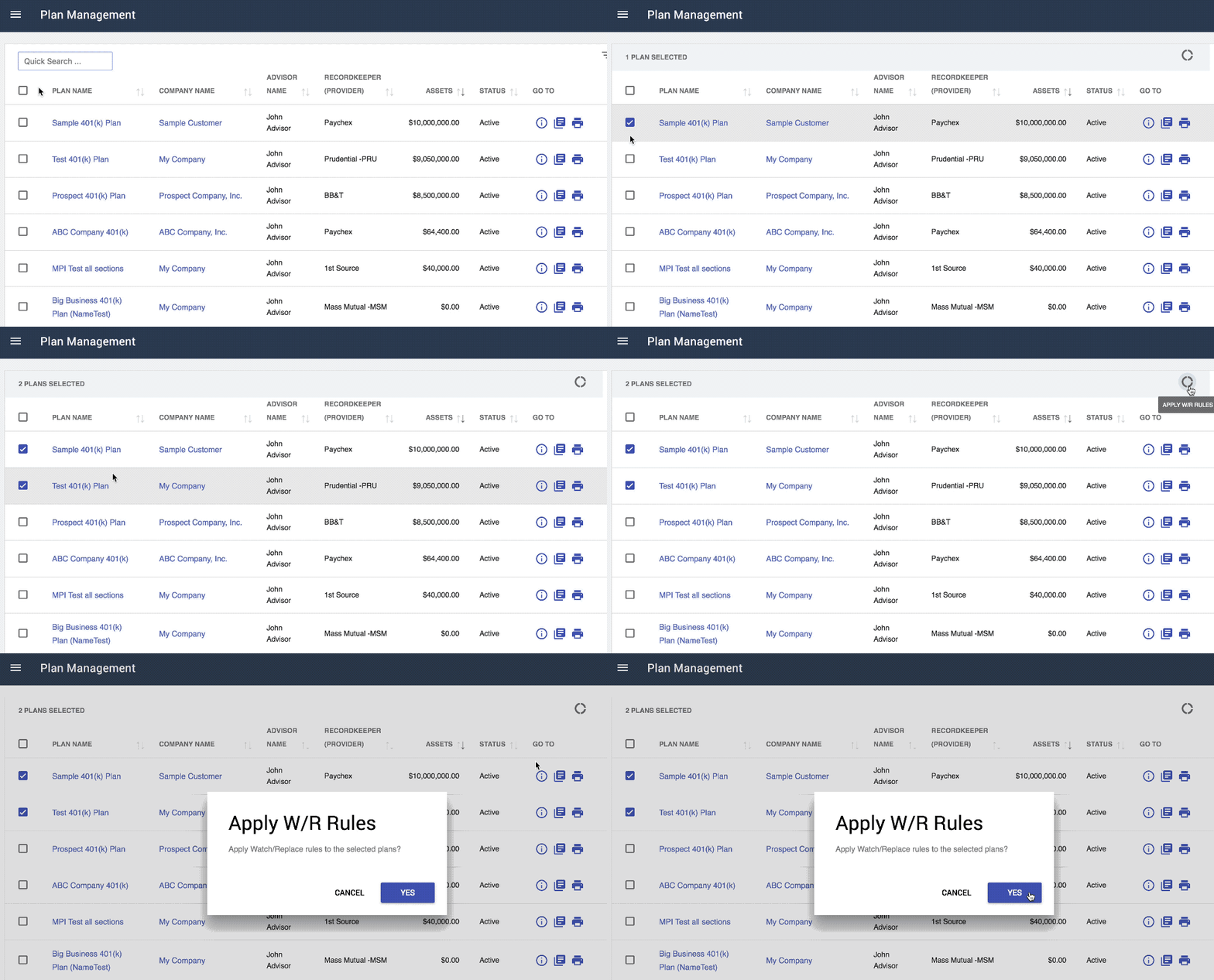
- Click Yes to apply your Watch & Replace rules.
- After the rules have been applied a confirmation message will appear, and the Fund Status Updated column will update for Plans you applied rules to.
Things to Remember
- Applying Watch & Replace rules is initiated manually. If you wish to have your rules apply in subsequent quarters, you will need to re-apply your rules each quarter.
- After fund status changes are made when applying rules, you can always access a Plan and change a fund status manually. Applying Watch & Replace rules does not prevent you from making manual changes later.