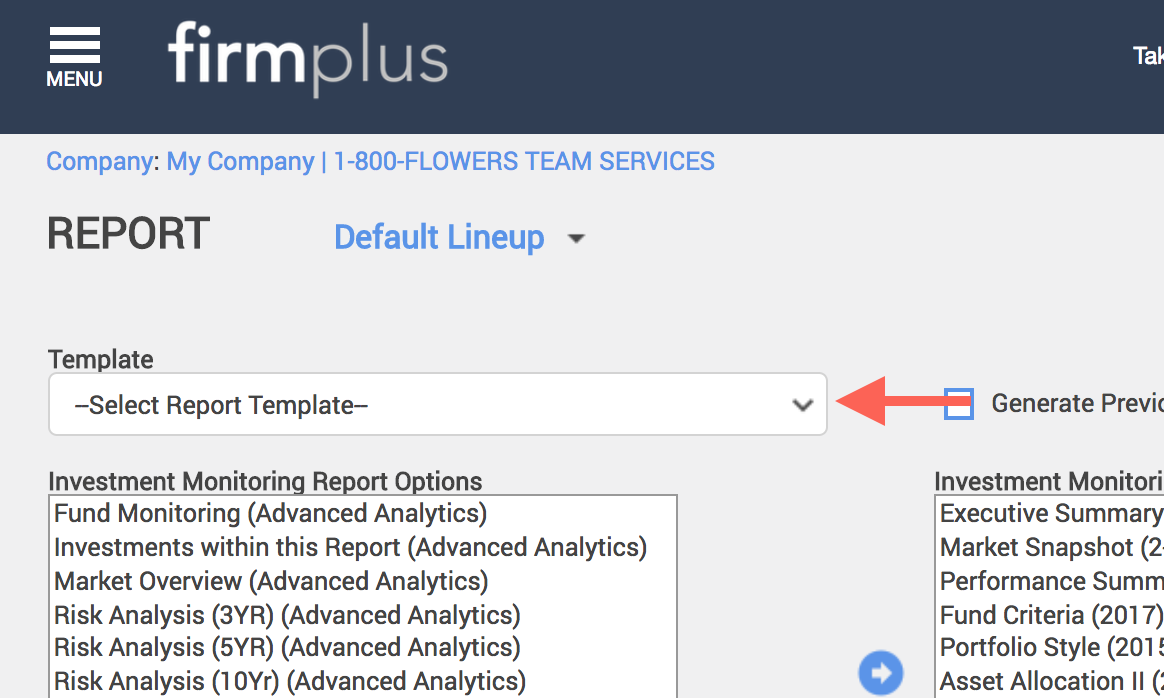
The Report Templates feature in FirmPlus gives you the ability to create Report Templates for your different Report Types. This makes it easy to quickly load a pre-configured report when generating reports for a Plan.
For example, some users create a Quarterly Investment Monitoring Report template, and an Annual Investment Monitoring Report template, for easy and consistent report creation.
How to Create a Report Template
- Click on the Plan Name from Plan Management. You will arrive on the Fund Lineup page.
- Click the menu icon in the upper left-hand corner. The menu will slide in from the left.
- In the menu click the Management Toggle.
- Click Reports and then Investment Monitoring Report.
- Configure the report sections and their order in the Chosen list on the right side of the screen. You can move sections between lists by clicking on the Report Section and clicking the left or right pointing arrow between the two Report Section lists.

- Click Save as Report Template.
- Enter a name in the New Report Template pop-up window.
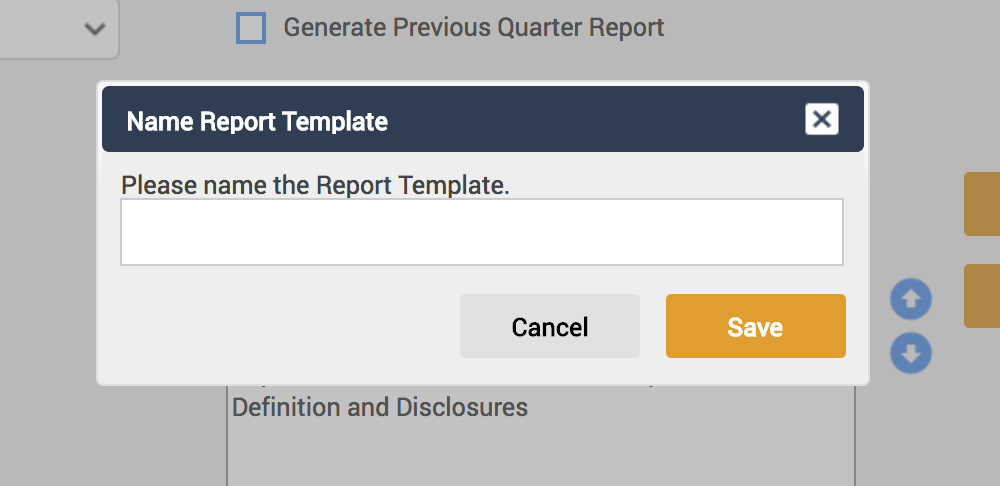
- Click Save.
- Your newly created Report Template will now be available in the Report Template drop down.