Evaluation Criteria are used to score investments in a Plan's fund lineup. There are 3 different criteria types -- Active Fund, Passive Fund, and Target Date Fund scoring. Active Fund criteria is always on. Passive and Target Date Fund scoring can be turned on optionally on a Plan basis. Below is an overview on accessing and using each criteria type.
How Do I Get to Evaluation Criteria?
- Access a Plan from Plan Management.
- Click on a Plan Name.
- Click the menu icon in the upper left-hand corner next to the FirmPlus logo. The menu will slide in from the left.
- Click the Setup option toggle.
- Click Fund Evaluation and then Evaluation Criteria in the expanded menu.
In This Article
Active Fund Criteria
Active Criteria is the default evaluation criteria type for Plans. The entire fund lineup for your Plan will be scored using Active Criteria unless you have turned on Passive Fund and/or Target Date Fund scoring.
Using Active Fund Criteria
- Click the Active tab.
- Select the Active Criteria you wish to use by clicking the corresponding drop down box for each criteria and choose a threshold.
FirmPlus reports are optimized for a selection of up to 12 different Active Fund criteria options.
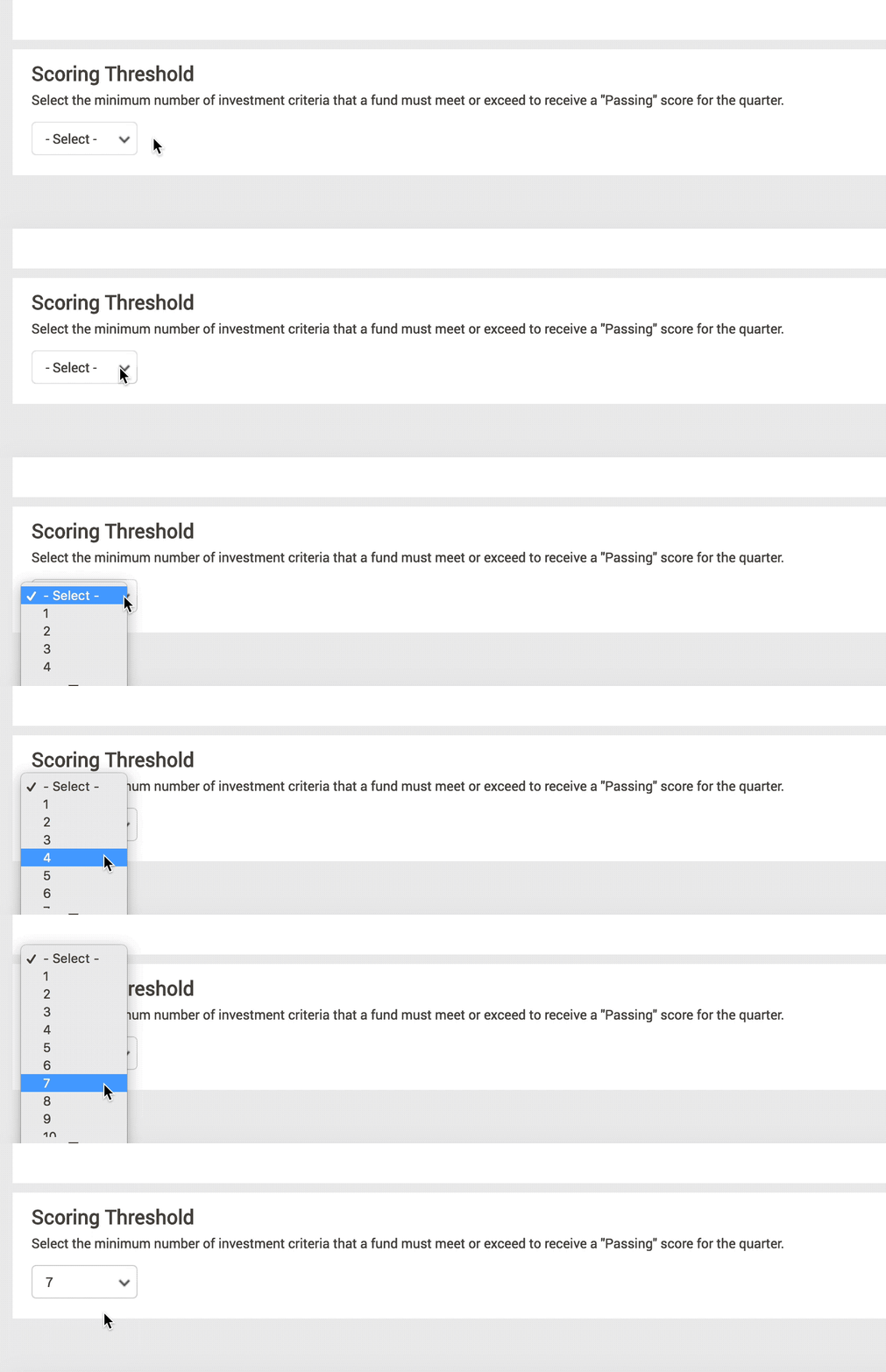
- At the bottom of the screen set the Scoring Threshold. This defines how many of the selected Evaluation Criteria need to be passing for a fund to be considered "Passing" overall for a given quarter. For example, if you set the Scoring Threshold to "7", at least 7 of the selected criteria must pass in order for a fund to be considered "Passing" for the quarter.
-
Click Save in the upper right-hand corner to save your changes.
Passive Fund Criteria
Passive Fund Criteria is an optional scoring feature. When enabling this feature you can set Passive Fund criteria that will apply to only Passive funds in your fund lineup.
When using the Passive Fund Criteria feature, certain report sections will place Passive Funds into their own segment within the report section. This includes the Executive Summary, Performance Summary, and Fund Criteria report sections.
Using Passive Fund Criteria
- Check the Enable Separate Passive Fund Scoring checkbox. This will activate the Passive tab.
- Click the Passive tab.
- Select the Passive Criteria you wish to use by clicking the corresponding drop down box for each criteria and choose a threshold.
FirmPlus reporting is optimized for selection of up to 12 different Passive Fund criteria options.
- At the bottom of the screen set the Scoring Threshold. This defines how many of the selected Evaluation Criteria need to be passing for a fund to be considered "Passing" overall for a given quarter. For example, if you set the Scoring Threshold to "7", at least 7 of the selected criteria must pass in order for a fund to be considered "Passing" for the quarter.
- Click Save in the upper right-hand corner to save your changes.
Target Date Fund Criteria
Target Date Fund Criteria is an optional scoring feature. When enabling this feature you can set unique Target Date fund criteria that will apply to only Target Date Funds in your fund lineup.
Target Date Fund criteria provides a method to select separate criteria to uniquely score Target Date Funds relative to other Target Date Funds available in the investment database.
When using the Target Date Fund Criteria feature, certain report sections will place Target Date Funds into their own segment within the report section. This includes the Executive Summary, Performance Summary, and Fund Criteria report sections.
Using Target Date Fund Scoring
- Check the Enable Separate Target Date Fund Scoring checkbox. This will activate the Target Date criteria tab.
- Click the Target Date criteria tab.
- Select the Target Date Fund Criteria you wish to use by checking the corresponding check box for each criteria.
- Enter the Importance Factor for each Target Date Fund Criteria set. The Importance Factor weights the criteria selected and will weight the calculated Fund Ranking Score. Your Importance Factor weights must add up to 100.
- Set a Scoring Scale and Scoring Threshold.
- Click Save in the upper right-hand corner to save your changes.
Target Date Fund Scoring Methodology
Target Date Fund specific scoring is based on a weighted rank scoring method using Importance Factors and a Scoring Threshold, as described below. When this option is utilized, the score for a target date fund is calculated based on each vintage’s weighted rankings within their peer groups.
- Importance Factors are Target Date criteria selected by the Plan Sponsor to be weighted by importance on a 100-point scale. Any single criteria selected can be weighed from 1 to 100 but the total for all weighted criteria must equal 100. A weighted composite ranking within each Target Date Asset Category (e.g. Target Date 2020, or Target Date 2030) is created based on the Importance Factors selected. A weighted ranking means that each Importance Factor is ranked against each fund in its peer group, then weighted according to the Importance factor weighting selected by the Plan Sponsor, then the weighted rankings are combined to create a single composite fund ranking. The weighted score, or weighted ranking of each target date fund evaluated, is then adjusted to fit the chosen Scoring Scale and compared to the Scoring Threshold.
- The scoring scale requested in the system will adjust the original weighted composite ranking to fit the scoring scale of the report. For example, if a calculated weighted composite ranking of a fund was 50 out of the 100 possible score, and the designated scoring scale was 12, the fund would then show a score of 6 in the report (50/100*12).
- The Scoring Threshold defines what score is required for a fund to “Pass” for the quarter. For example, if the Scoring Scale was 7 and the Scoring Threshold was 4, a fund that scored a 4 or above would pass.
TDF Equation:
( ( (100 - Fund Criteria 1 Ranking) * Importance Factor ) * Scoring Scale / 100 )+ ( ( ( 100 - Fund Criteria 2 Ranking) ) * Importance Factor ) * Scoring Scale /100 )
Description of variables:
- The fund criteria ranking: this variable is calculated by FirmPlus. It is the percentile rank of the TDF vintage against its peer group for the relevant criterion.
- Importance factor: this is the weight between 1-100 of the criteria set by the plan sponsor/RPC in the system
- Scoring Scale: this is the scale between 1-12 set by the plan sponsor/RPC in the system
- Result of the calculation is rounded to nearest whole number (i.e., if decimal is .5 or higher, rounds up)
Here is an example of this:
Assumptions:
- The 2030 vintage of a target date fund is ranked at the 50 percentiles for three, five year, and ten year returns and the five-year Sharpe ratio
- The plan sponsor chooses to give each of these four criteria an equal weight on importance factor of 25%
- The plan sponsor sets the threshold to 6 and scoring scale to 12
Three year return Five year return Ten year return Five year Sharpe Ratio
[((100-50)*25%*(12/100))+ ((100-50)*25%*(12/100))+ ((100-50)*25%*(12/100))+ ((100-50)*25%*(12/100))] = 6
- 6/12 meets the threshold, so the fund is green for the quarter
- All bold variables selected by plan sponsor as well as the threshold of 6
- So even though in this example the plan sponsor chooses four criteria, you can rate it out of a scale of 12
- If weighted scoring is turned on, you can set the threshold as a weighted score out of 100, and the calculation will compute a percentage instead of a numeric score. In this case the fund would have hit 50%, so as long as the threshold set is 50%, the fund would pass
Three year return Five year return Ten year return Five year Sharpe Ratio
[((100%-50%)*25%)+ ((100%-50%)*25%)+ ((100%-50%)*25%)+ ((100%-50%)*25%)]= 50%
How to Disable Fund Evaluation
Fund Evaluation can be disabled for reporting. Disabling Fund Evaluation will remove any Fund level pass / fail color coding as well as any meets or does not meet labeling. This would primarily be on the Executive Summary, Fund Criteria Report, and Fund Fact Sheets. Fund Scores would remain but not indicate a pass or fail.
Disable Fund Evaluation
- On the Evaluation Criteria page, scroll to the Scoring Threshold table on the bottom of the page.
2. Select the dropdown and set to -Select-.
3. Click Save in the upper right-hand corner to save your changes.
Score Weighting
Score Weighting allows you to assign points (out of 100) to each evaluation criteria and place more or less emphasis on selected evaluation criteria. This produces a fund score out of 100.
Setting Score Weighting
- On the Evaluation Criteria page, select the Scoring Methodology
- On the next page, scroll to the bottom to find the Scoring Methodology section
3. Within the Scoring Methodology section, users have the option of applying Score Weighting to the Plan.
4. Click Save in the upper right-hand corner to save your changes (Note: Back arrow now takes user correctly back to Evaluation Criteria screen page).
Note: Remember to update Fund Score Criteria if you are making changes to Scoring Methodology.