Plan Management provides access to all Plans in your account as well as offers many other abilities.

In This Article
Plan Management Overview
Accessing Plans
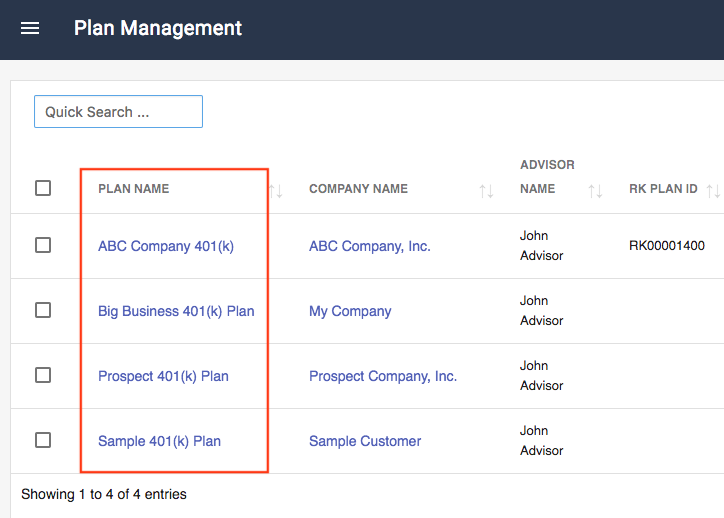
Clicking on the name of the Plan in the Plan Name column will take you to the Fund Lineup page for the Plan.
Go To Buttons
The Go To column provides access to frequently used features.

 |
Takes you to the Plan Info screen |
 |
Takes you to the Report Archive screen |
 |
Takes you to the Report Generation screen |
Edit Plan Management View
The Plan Management View Settings feature allows you to control which columns are visible. You can select to view or hide any column.
Add / Remove Columns
- Click the Grid Settings icon located in the upper right-hand side of the screen. This will open up the view column options.
- Check or un-check a box to add or remove a column from the Plan Management View.

The next time you return to the Plan Management page, FirmPlus will only display the columns you selected to be visible.
Plan Management Filters
The Plan Management Filter feature provides the ability to create custom views of Plans based on what filter options you've selected. You can create custom filters with one or multiple rules.
Create a New Filter
- Click the Filter Plan icon in the upper right-hand corner of the page.
- Click Create New Filter in the drop-down. The Edit Filter window will appear.
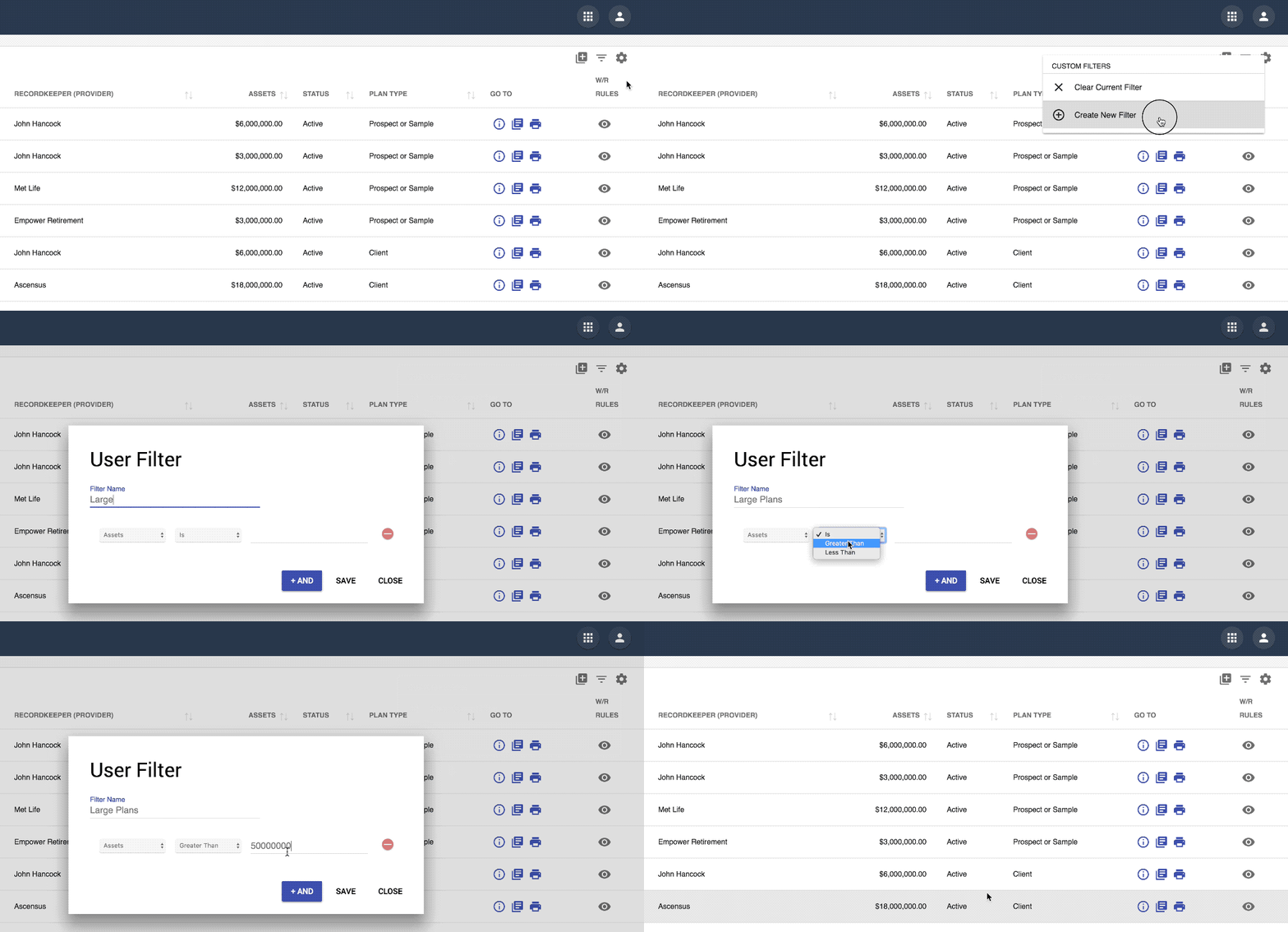
- Enter a Filter Name
- Select the Filter Type, Operator (Is, Greater Than, Less Than, etc.), and Value.
- Add additional rules to your filter by clicking the + AND button.
- Click Save when you are finished.
Apply / Clear a Filter
- Click the Filter Plan icon in the upper right-hand corner of the page.

- Select a filter from the list. The screen will refresh and display Plans that meet the filter's criteria.
- To remove a filter, click the Filter Plan icon and click Clear Current Filter. The screen will refresh and display all Plans.