Fund Management allows you to view, filter, and export fund information like scores, assets, status, and eligibility across all client Plans in your account. Fund Management aggregates data by fund across all client Plans, but provides the ability to both view and export individual Plan level data as well!
The data in Fund Management is refreshed nightly. This means changes you make to Plans in your FirmPlus account will not be reflected in Fund Management until the next day.
In This Article
User Interface Overview
How to access Fund Management
1. Log into FirmPlus
2. Click the Menu Icon
3. Click Fund Management
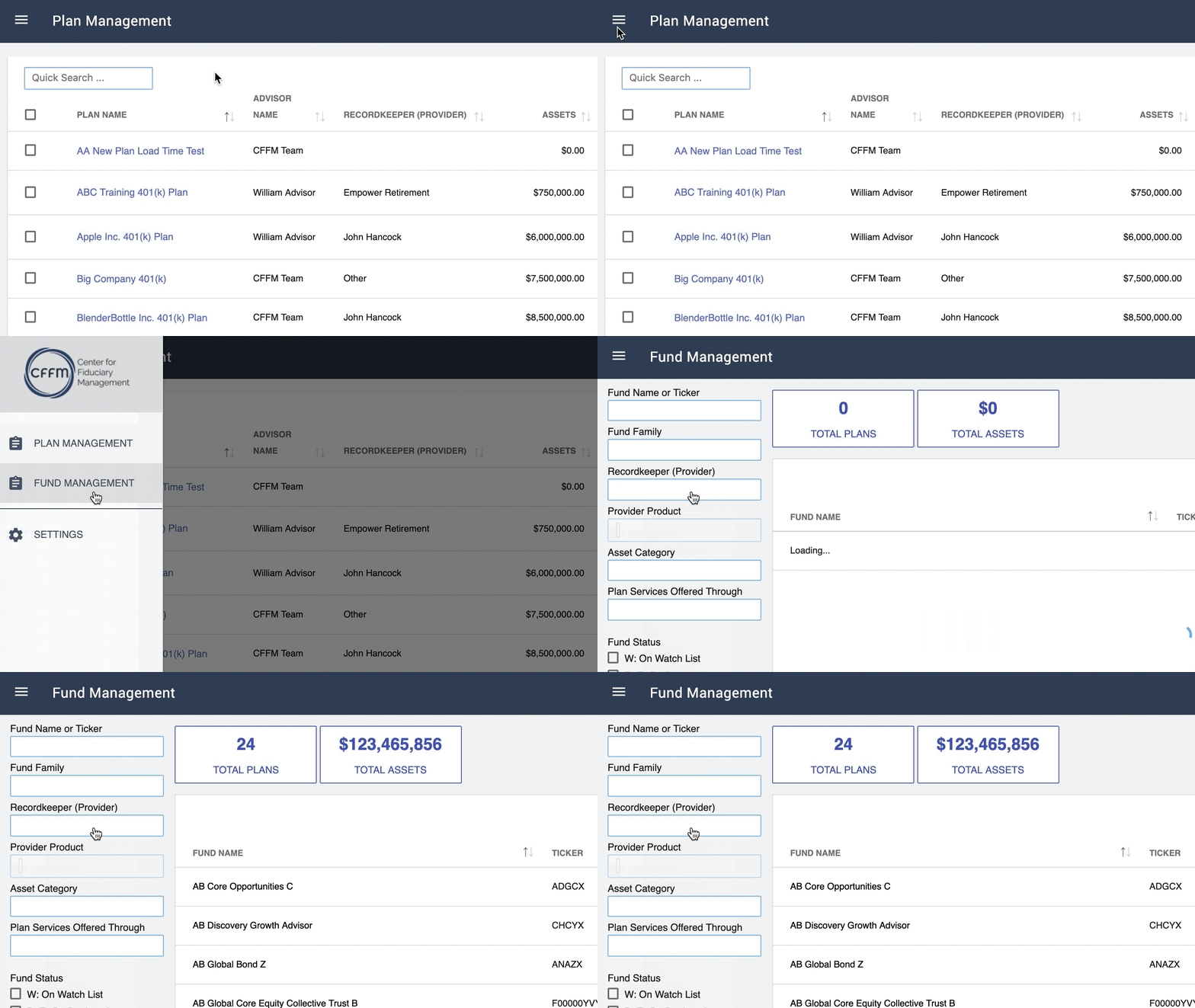
When accessing Fund Management, the first step that occurs is the data is loaded for your account.
After the data loads for your account, the table to the right of the screen will populate, as well as the Total Plans and Total Assets widgets. To filter your account data, you can use the filter panel to the left of the screen. Below is a description of both the data table and the filter panel.
The data load process can take a few seconds to a minute depending on the number of Plans and investments in your FirmPlus account.
Data Table Overview
The data table displays investment data as well as a few other pieces of information. See below for a description of each element.

| Item | Feature | Feature Description |
|---|---|---|
| 1 | Fund Name | Name of the investment. |
| 2 | Ticker | Ticker symbol or ID for the investment. |
| 3 | Fund Family | Fund family for the investment. |
| 4 | Total Assets | Aggregate total assets for the investment across all client Plans. |
| 5 | # of Plans | Aggregate total number of Plans that currently include the investment in their fund lineup. |
| 6 | Lowest Score | The lowest total score for the fund across all client Plans. |
| 7 | Indicators | The exclamation point "!" inside a triangle icon means the fund is not currently eligible based on the UBS Eligibility List. The "i" inside a circle icon means the investment is an index fund. |
| 8 | Export Data to Excel | Clicking this button exports the current data set to Excel. |
| 9 | Page Navigation | Allows for navigation of the pages of investment data. |
Filter Panel Overview
The Filter Panel provides a multitude of filtering options for your data. See below for a description of each filter option.

| Item | Feature | Feature Description |
|---|---|---|
| 1 | Fund Name | Filter data based on the investment name. |
| 2 | Fund Family | Filter data based on fund family. |
| 3 | Recordkeeper | Filter data based on Plans that are set to a chosen Recordkeeper. |
| 4 | Provider Product | Filter data based on Plans that are set to a chosen Recordkeeper Product Platform. Note: This filter is only active after choosing a Recordkeeper, and only if platform filters are available for that Recordkeeper. |
| 5 | Asset Category | Filter data based on asset category. |
| 6 | Plan Services Offered Through | Filter data based on the Plan Services Offered Through setting for the Plan. |
| 7 | Fund Status | Filter data based on if an investment has a Watch or Replace status. As long as one instance of the fund across client Plans has a Watch or Replace status, the fund will appear in the filtered results. |
| 8 | Failing Funds | Filter data based on if an investment is passing or failing a Plan's investment evaluation criteria. As long as one instance of the fund across client Plans is passing or failing, the fund will appear in the filtered results. |
| 9 | UBS Eligible | Filter data based on if a fund is currently eligible or ineligible per the UBS eligibility list. |
| 10 | Funds Containing Comments | Filter data based on if a fund does or does not have any fund comments saved to it across all client Plans. |
| 11 | Apply Filters | Clicking this button applies the current selection of filters and refreshes the data table. |
| 12 | Total Plan Stats | Based on the current filtered data, the Total Plans and Total Assets statistics will aggregate each metric respectively. |
How to Filter Investment Data
Fund Management provides many filter options to help you drill down to the data you're after. Whether you're interested in finding funds that have a Watch status, belong to a particular fund family, or are not passing a Plans' evaluation criteria, there is a filter option to assist you!

Filtering Data
- Access Fund Management and allow time for your data to load.
- In the Filter Panel to the left, choose the filters you wish to apply to your data. For any of the non-checkbox filter options, you enter one or multiple selections.
- After you're finished applying filters, click the Apply Filters button to apply your selections.
- The data table to the right of the screen will update to reflect your chosen filters.
- If you wish to make changes, simply adjust your filter selections and then select the Apply Filters button again.
How to Access Plan Level Investment Data
While Fund Management assists with aggregating data across client Plans, you can also access Plan level data should you wish to dive into the details.
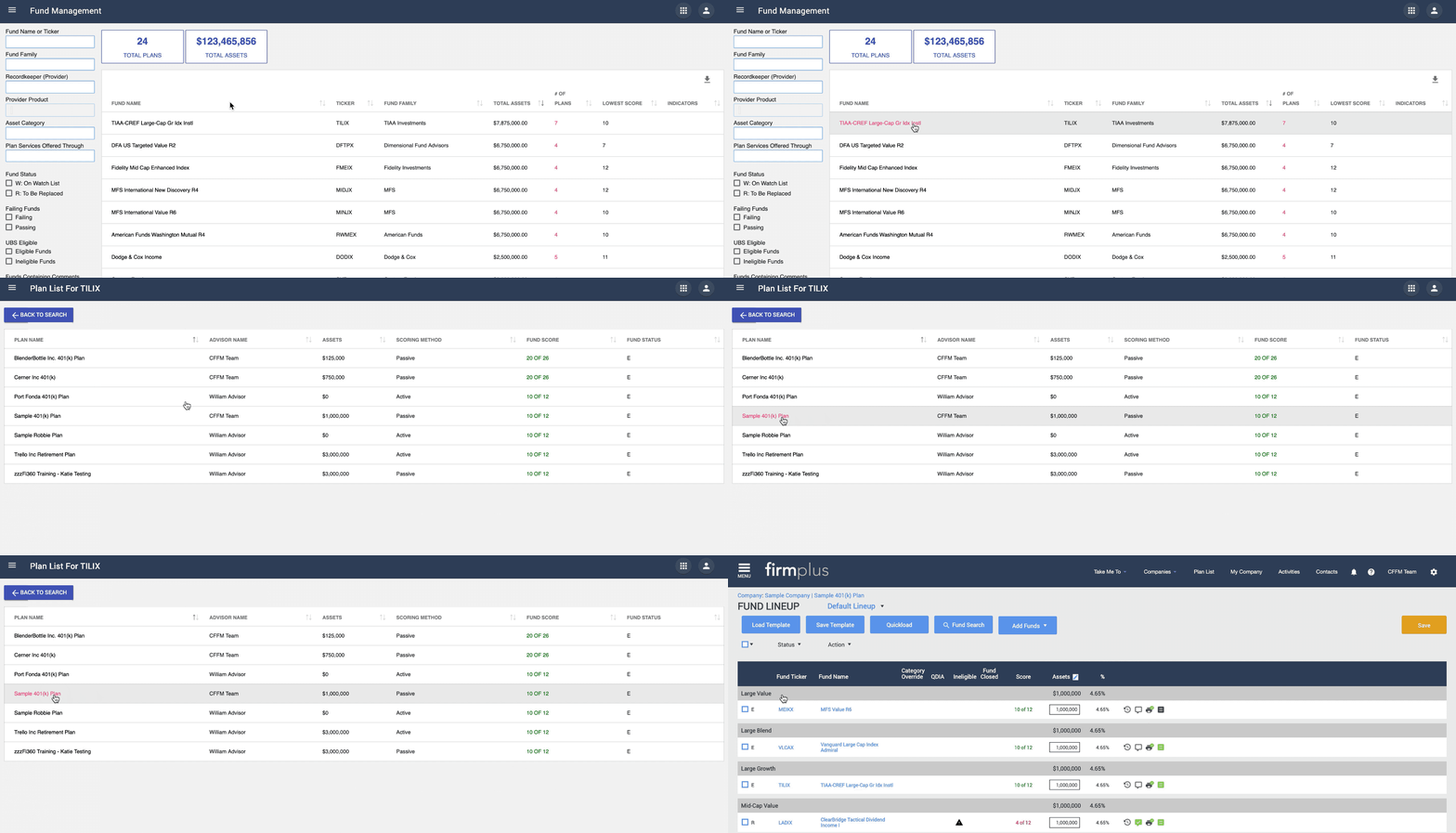
Accessing Plan Level Investment Data
- Access Fund Management.
- Filter your data as necessary using the filter options to the left of the screen.
- Click on the Fund Name of an investment you wish to access Plan level investment data for.
- The Plan Level Investment Data screen will appear. This list contains all instances of the selected investment across all client Plans.
- To access the Plan that contains the investment, click on the Plan name.
- You will be directed into the selected Plan in FirmPlus and arrive on the Fund Lineup screen.
- To return to Fund Management, you can click the "Plan List" button at the top of the screen, or click "Take Me To" and then "Fund Management".
How to Export Investment Data
If you need to export your filtered investment data from Fund Management, there is a very simple process to do that. The export file contains aggregate investment data, as well as plan level investment data (including fund commentary). See below for how to export your investment data, as well as an overview of the data inside the export file.
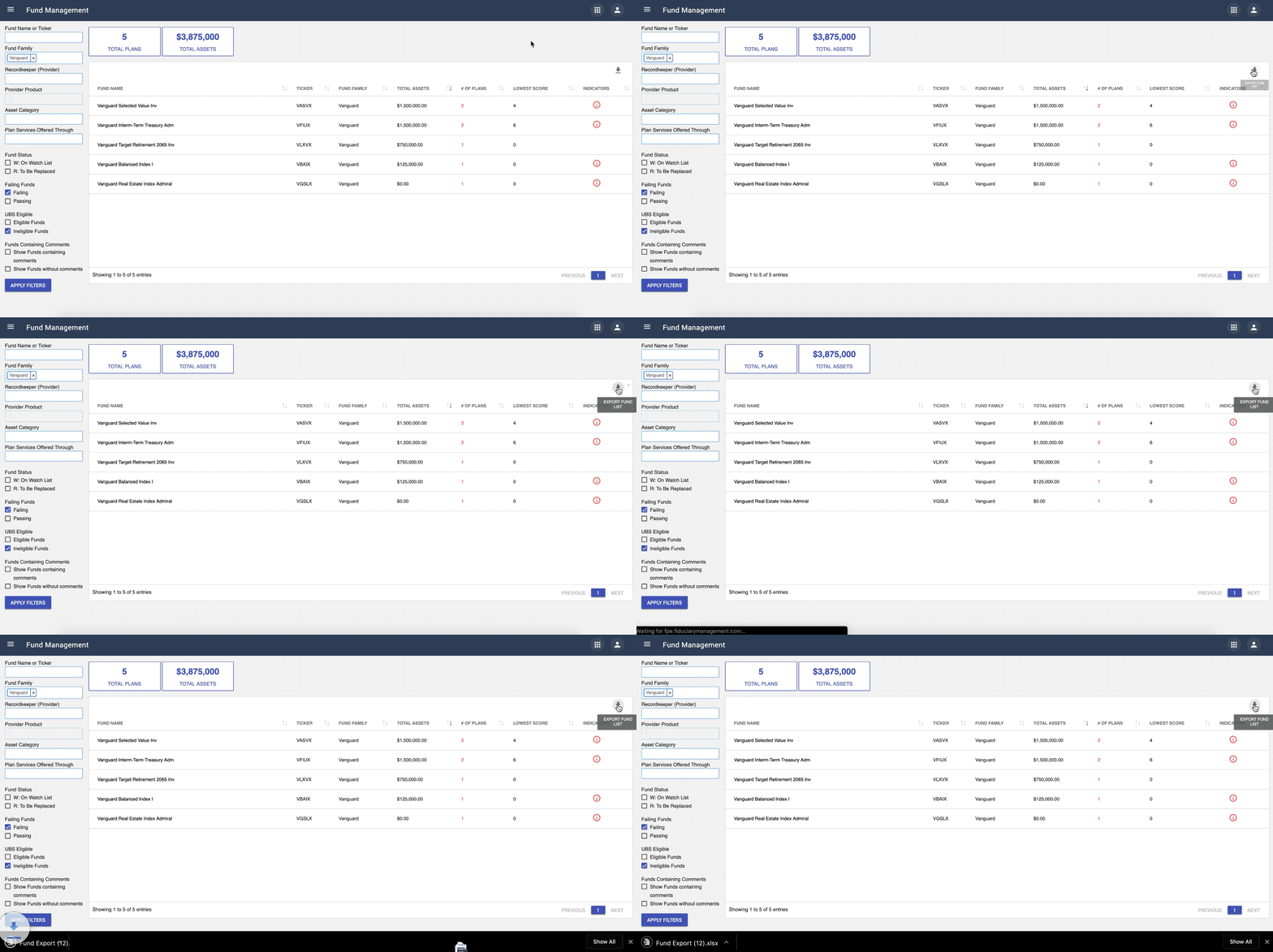
Exporting Investment Data
- Access Fund Management.
- Filter your data as necessary using the filter options to the left of the screen.
- Click the Export button (downward pointing arrow) in the upper right-hand corner of the data table.
- A looping processing indicator will appear to the right of the export button.
- When the data has been processed, an Excel file will download to your computer.
Export File Overview
The data export file from Fund Management contains three sheets. A description of the data in each sheet is below:
Sheet 1 - Aggregate Investment Data
Sheet 1 contains the aggregated investment data across all client plans based on the filter settings of the exported data.
Sheet 2 - Plan Level Investment Data
Sheet 2 contains the Plan level specific data for the data exported. This will provide the data for each instance of the investments in your exported data file, as well as other plan specific information.
If you do not filter your results when exporting, this sheet in the export file can act as a method to export all of your client's plan data to Excel!
Sheet 3 - Fund Commentary
Like Sheet 2, this sheet contains any Fund Comments that have been entered for a given investment across all client Plans. If the same fund has comments entered in multiple plans, each comment will appear in the file.