Fund Lineup is where you can configure the investments, assets, fund statuses, and other items related to the Plan's fund lineup.
In This Article
Fund Lineup Overview
How Do I Get to Fund Lineup?
- Click on a Plan Name from Plan Management.
OR
- Click the menu icon in the upper left-hand corner next to the FirmPlus logo. The menu will slide in from the left.
- Click the Management option toggle.
- Click Investment Management and then Fund Lineup in the expanded menu.
Fund Lineup provides many functions and features related to managing your Plan's fund lineup. An overview of the functions are below:
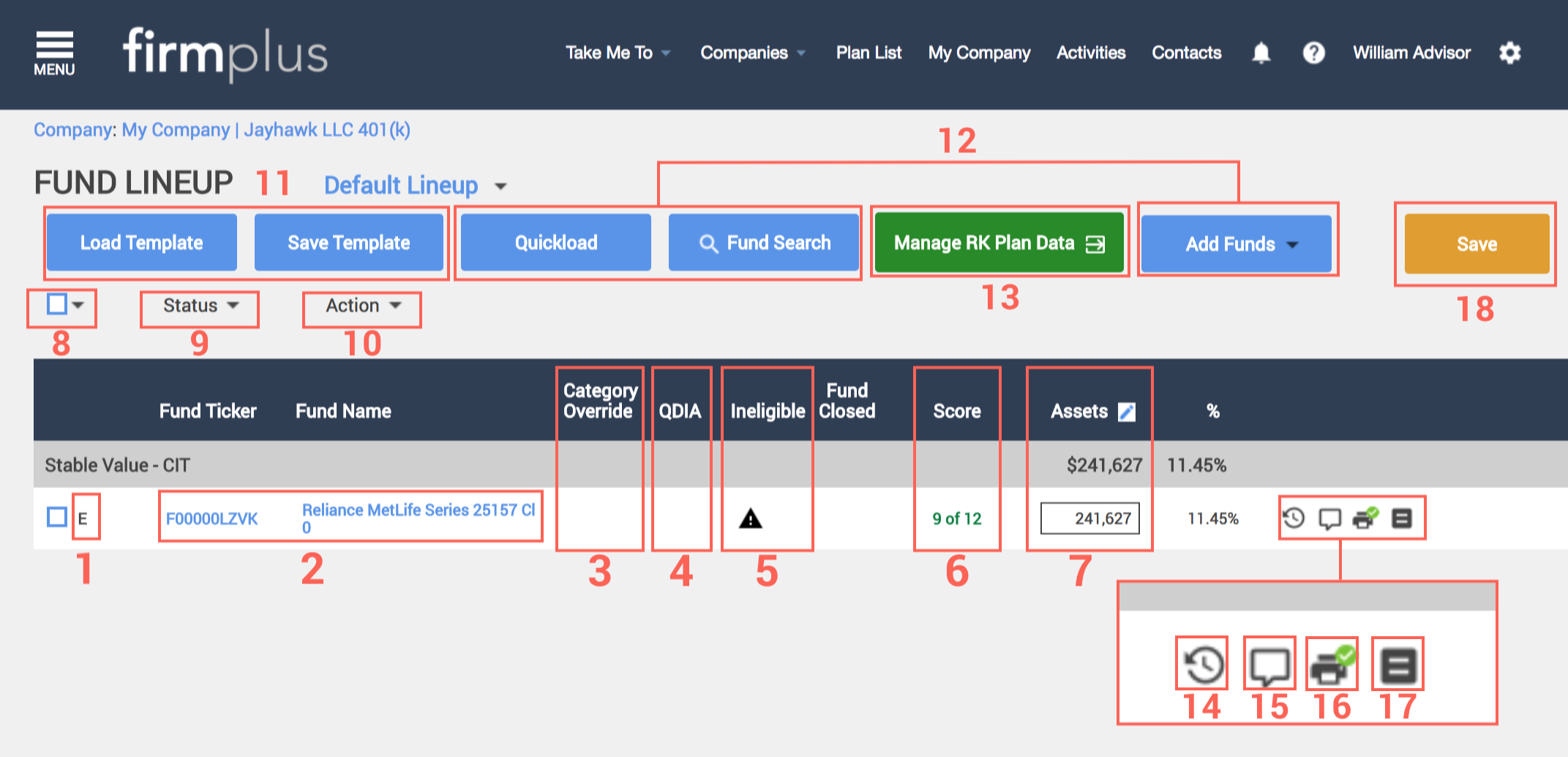
| Item | Feature | Feature Description |
|---|---|---|
| 1 | Current Fund Status | The current fund status for the fund. Change the fund status by following these steps. |
| 2 | Fund Name and Ticker | The Fund Ticker and Fund Name. Clicking either will pull up the fund's Fund Fact Sheet. |
| 3 | UBS Category Override | Indicates if the fund has had it's Morningstar category assignment overridden. Learn more about this process here. |
| 4 | QDIA | Indicates if a fund has been chosen as the QDIA. This can be done / changed by following these steps. |
| 5 | UBS Ineligible Funds | Indicates if a fund is not on the UBS Eligibility list. Learn more about this process here. |
| 6 | Fund Score | Indicates the current quarter score for a fund. The score is driven by the Evaluation Criteria chosen for the Plan. |
| 7 | Assets | The current assets for the investment. |
| 8 | Batch Fund Selection | Allows for batch selecting /deselecting of funds. To batch select funds, check the box and use the drop-down arrow to make your selection of which funds to select. |
| 9 | Fund Status Options | Allows for changes to a given fund(s) status. Fund Statuses can be changed by following these steps. |
| 10 | Fund Actions | Provides numerous actions that can be taken on funds in the fund lineup by following these steps. |
| 11 | Load / Save Fund Lineup Templates | Allows for the saving and loading of fund lineups. |
| 12 | Add / Search Funds | Provides the ability to add and search for funds in numerous ways. Learn more below. |
| 13 | Manage Recordkeeper Plan Data-Feed | Allows for the import and management of the linked Recordkeeper data-feed for the Plan. Learn how to import and manage the data-feed here. |
| 14 | Fund Score and Status History | Displays the historical scores and fund statuses for the previous 7 quarters. |
| 15 | Fund Comments | Allows for the entry of Fund Comments that when included, will display in the Fund Commentary section of the Executive Summary. |
| 16 | Display Fund Fact Sheet in Report | Indicates if a fund will have its Fund Fact Sheet display in generated reports in the Fund Fact Sheet report section. By default, all funds added have this enabled. |
| 17 | Secondary Benchmark Selection | Allows for the selection of a secondary benchmark that will display in the Performance Summary report section. Learn more about this feature here. |
| 18 | Save Button | Saves changes made on the Fund Lineup page. |
How to Add Funds to a Lineup
Fund can be added to a lineup in a few different ways. Use the links below to jump to a specific feature.
- Quickload allows for the entry of ticker symbols to add funds. You can also use Quickload to look up ticker symbols which can be extremely useful when looking up Separate Account, CIT, and Annuity funds.
- Add Funds provides a search feature for seeking out funds by asset category, and allows you to filter your search results based on funds score, platform availability, and UBS eligibilty. This search feature is great for seeking out replacement funds for underperforming existing funds.
- Custom Funds allows for the addition of a custom holding / investment. This is useful for funds / holdings that do not exist in the FirmPlus investment database (Loan Balances, Money Market Funds, Corporate Stock).
How to Add Funds Using Quickload
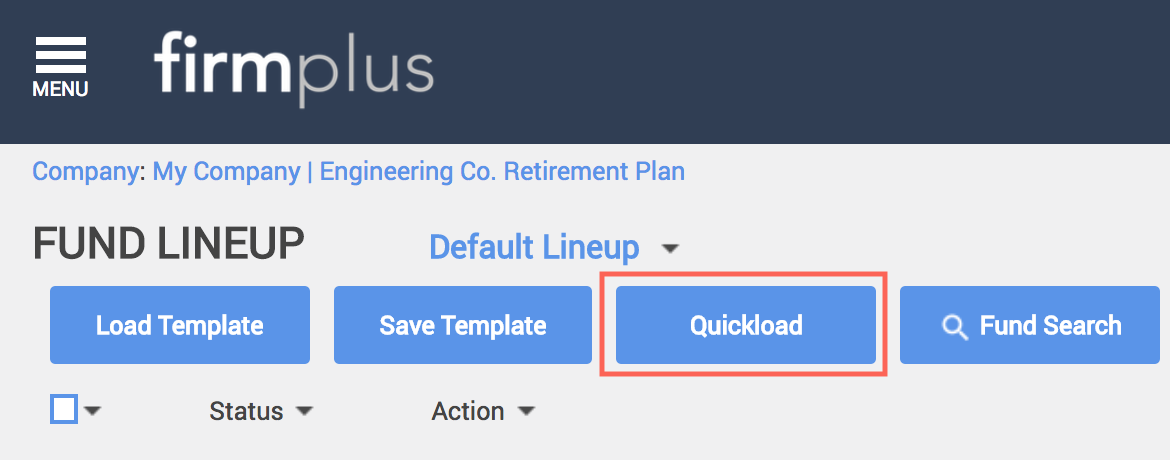
- Click the blue Quickload button near the top of the screen.
- On the Fund Ticker Load screen enter the tickers of the funds in your lineup in the open text box using one of the methods below.
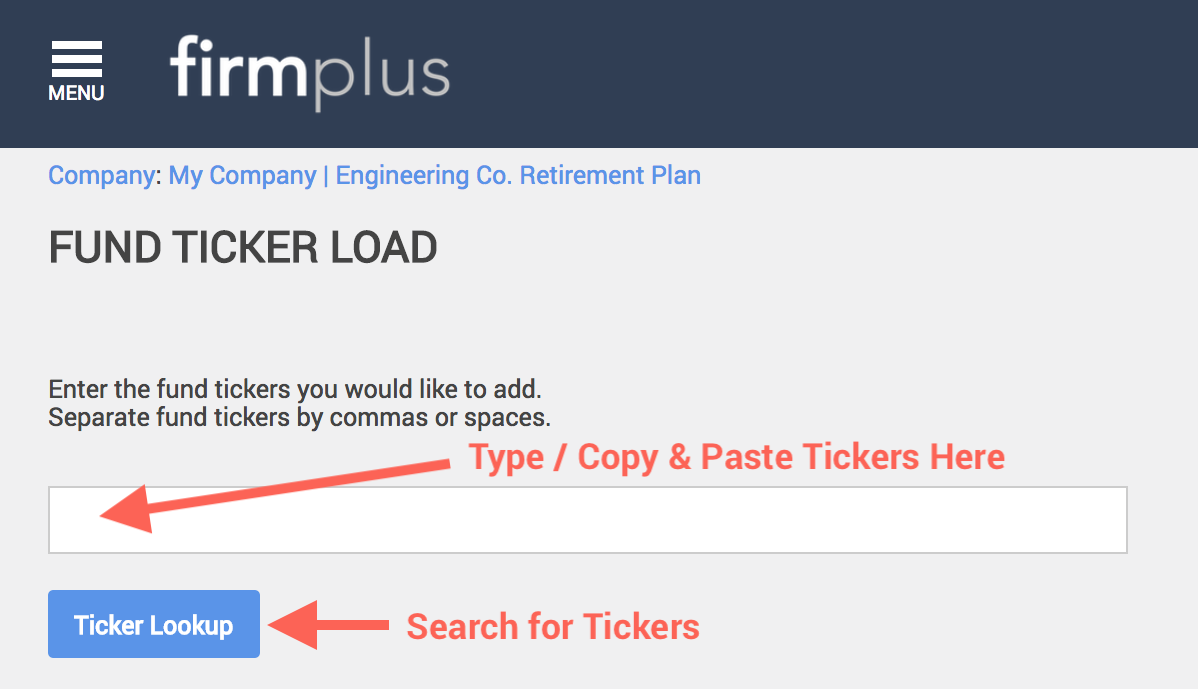
- Manually type in Ticker Symbols, separated with a comma or space.
- Copy and paste tickers in from a spreadsheet or document.
- Use the Look-Up feature to locate Ticker symbols.
- In the Add As area choose a Fund Status by selecting an option from the drop-down list. A legend is above the drop-down list which defines each Fund Status option.
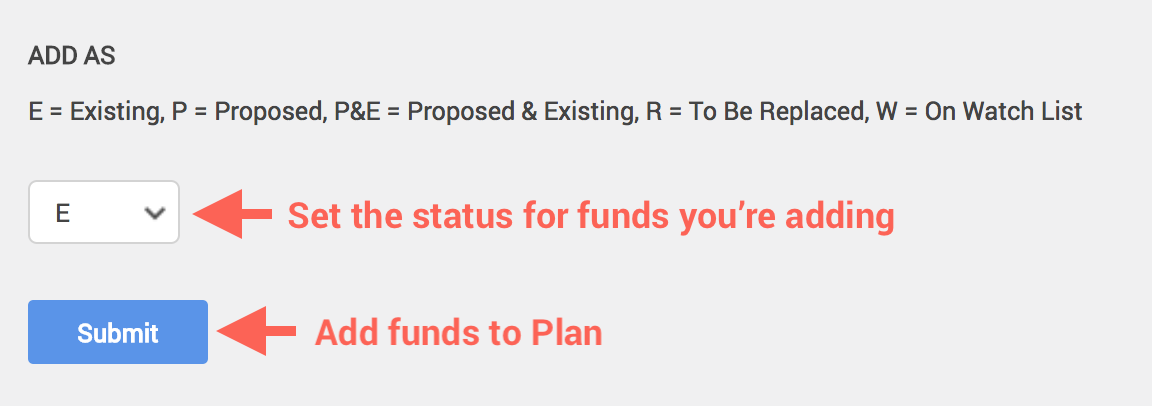
- Click the Submit button.
- A confirmation message will appear confirming that your funds have been added. Any funds that were not located will display in red.
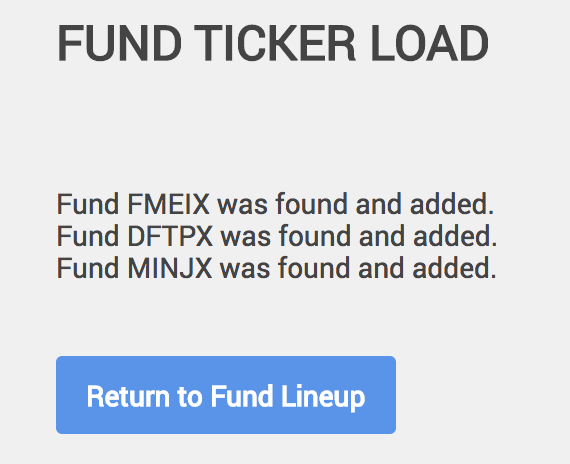
- Click the Return to Fund Lineup button. You will return to the Fund Lineup screen and funds you added will be visible.
How to Add Funds Using Add Fund
In order to use Add Fund, the Asset Category you are wishing to add a fund to must be selected. If an Asset Category you are wishing to add a fund to is not available, you must select it on the Categories page.
- Hover over the Add Funds button near the top of the screen. A drop-down menu will expand.
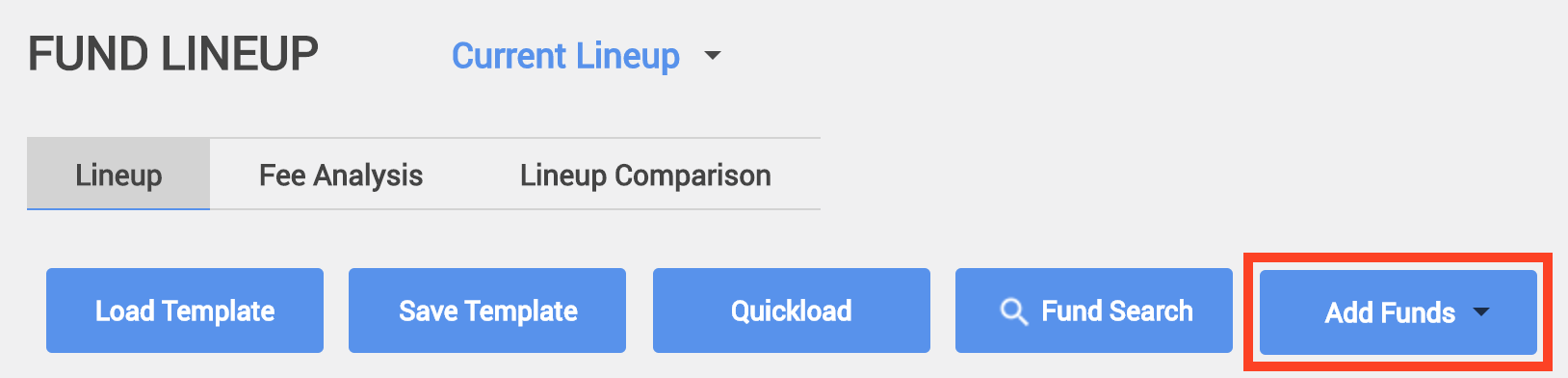
- Find the Asset Category you wish to add a fund to in the drop-down menu and click the Add link. The Add Fund window will open.
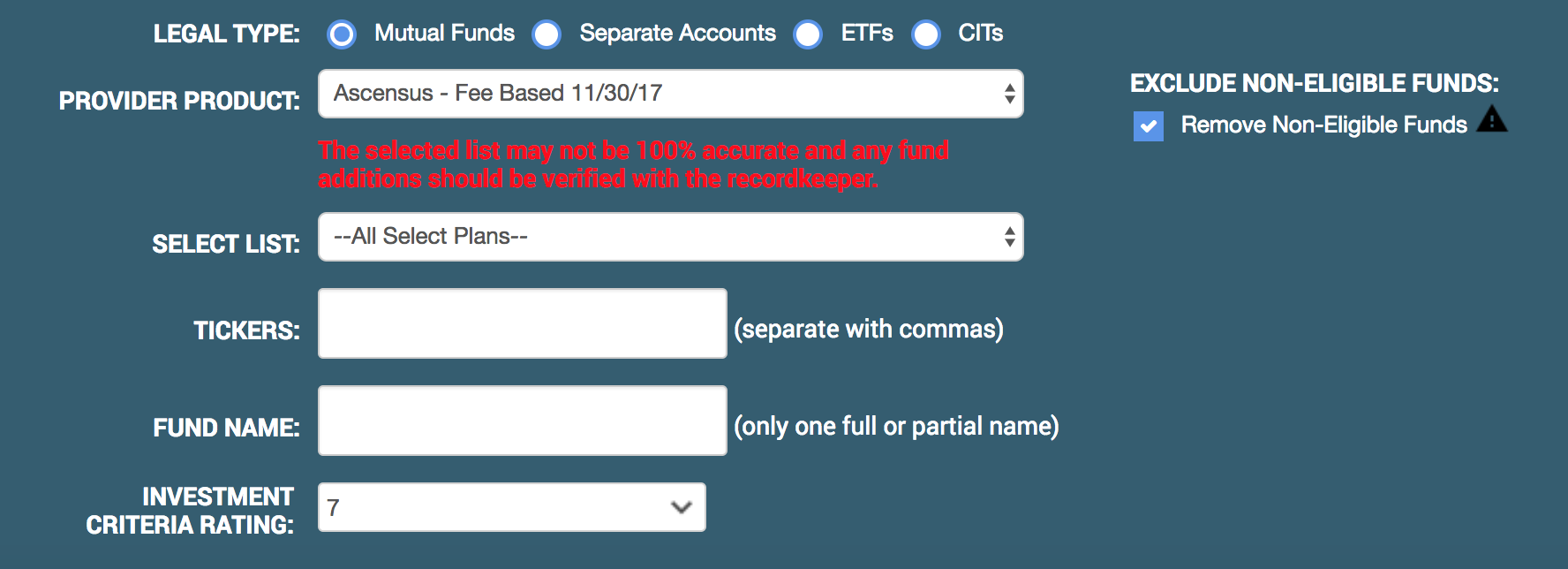
- You can filter your search for funds by:
- Legal Type (Fund Universe)
- Product Platform
- Ticker Symbol
- Fund Name
- Investment Criteria Rating - Using this search filter will only allow funds to appear in your search results that have a fund score greater than or equal to the selected threshold. The fund score is based on the Evaluation Criteria selected for the Plan.
- Exclude Ineligible Funds
- When your filter options are set, click the Search Funds button to the right. Your search results will appear below.
- Search results are sortable by clicking the column headers in the search results table. For example, clicking the Score column title in the results will sort the results by score from best to worst.
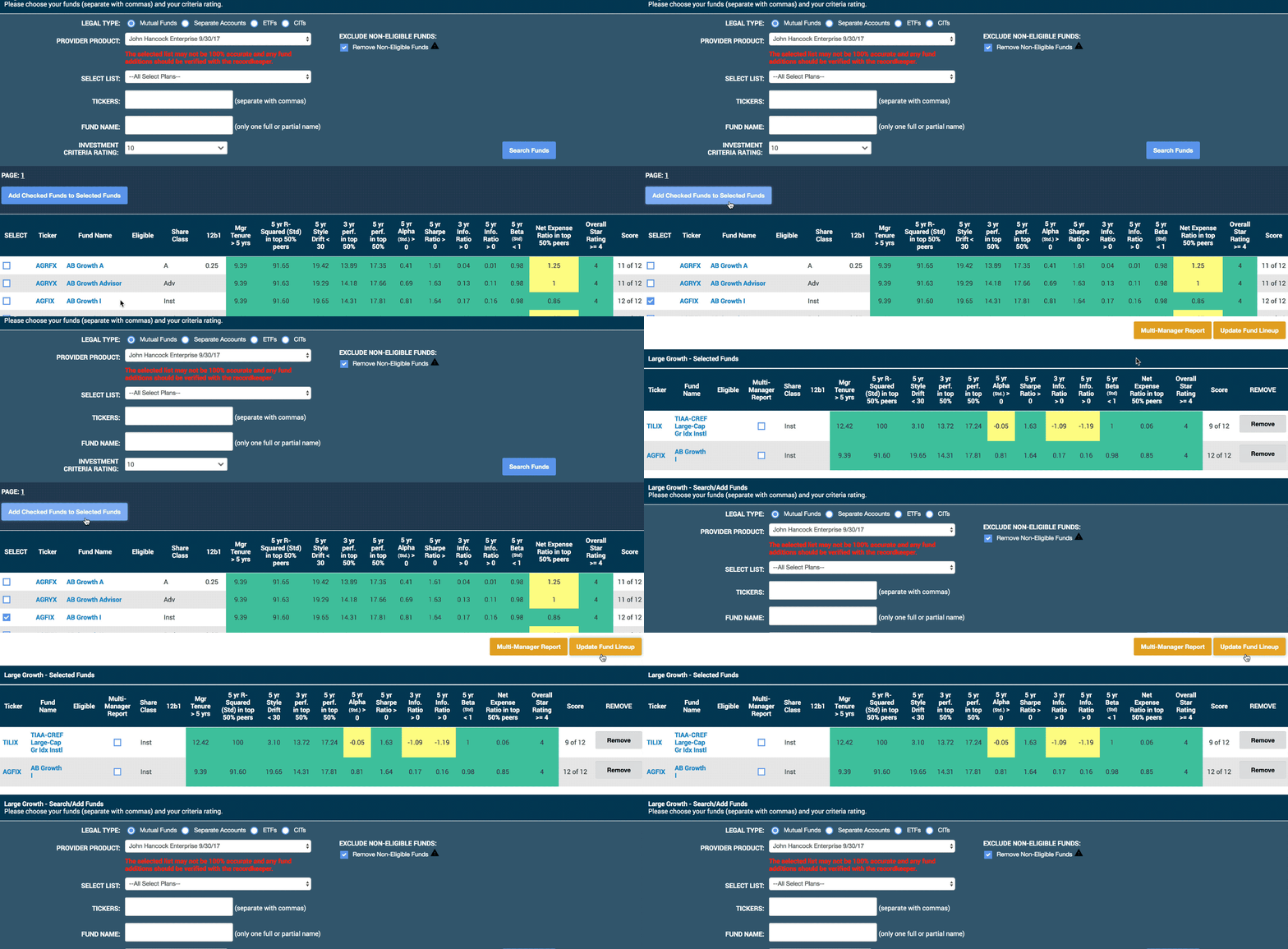
- To add a fund from the search results click the check box next to the fund ticker. Once your selection(s) has been made, click the Add Checked Funds to Selected Funds button above the search results.
- The fund(s) will now appear in the Selected Funds section of the Add Fund window. To finish adding the fund(s) click the Update Draft Portfolio button in the top right corner. The window will then close, and the Draft Portfolio page will refresh and reflect the added fund(s).
How to Add Custom Funds
Custom Funds can be added to your investment line-up for any investment / holding that is not in our investment database. While these funds won't be scored, you can enter data for display in the Performance Summary report section.
In order to add a Custom Fund, the Asset Category you are wishing to add a Custom Fund to must be selected. If an Asset Category you are wishing to add a custom fund to is not available, you must select it on the Categories page.
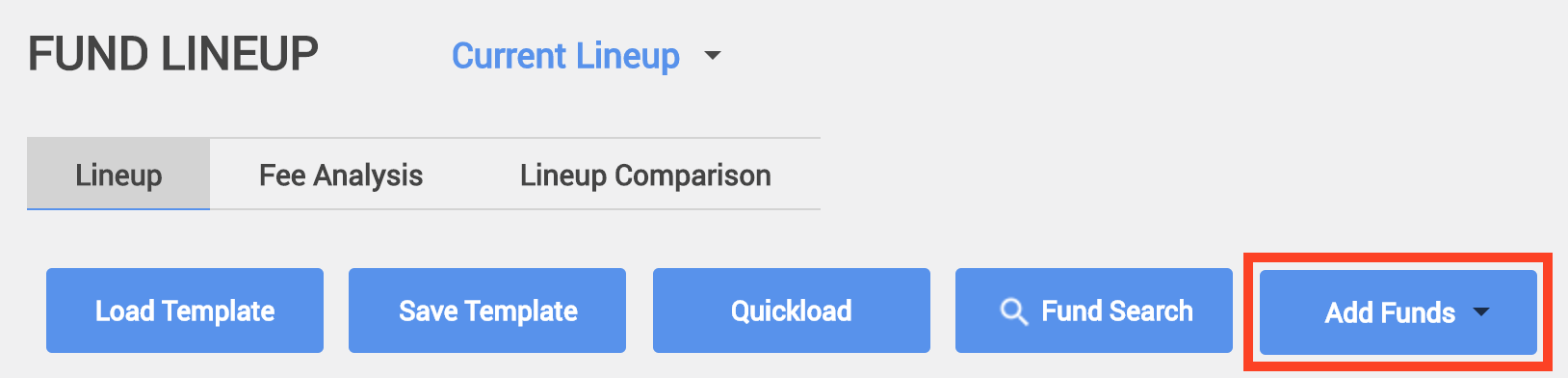
- Hover over the Add Funds button near the top of the screen. A drop-down menu will expand.
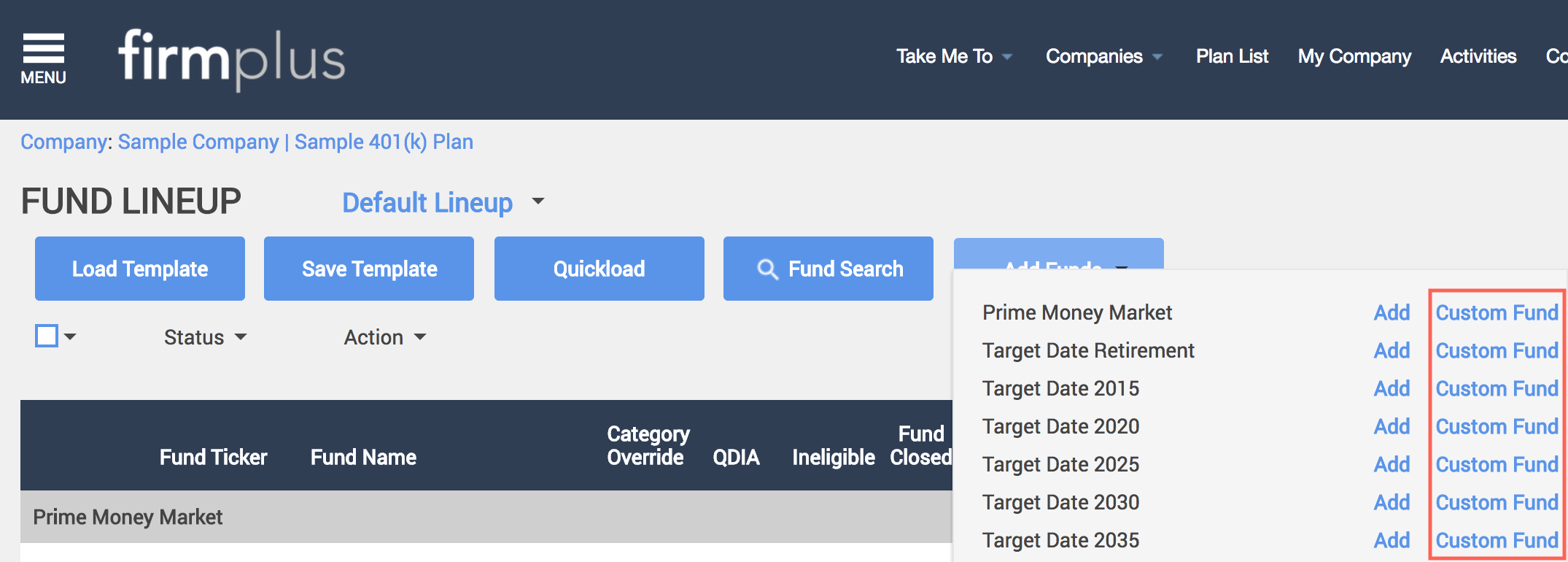
- For the Asset Category you wish to add a Custom Fund to, click the Custom Fund link. The Custom Fund pop-up window will open.
- Enter a Fund Ticker (which can be a made-up ticker) and a Fund Name.
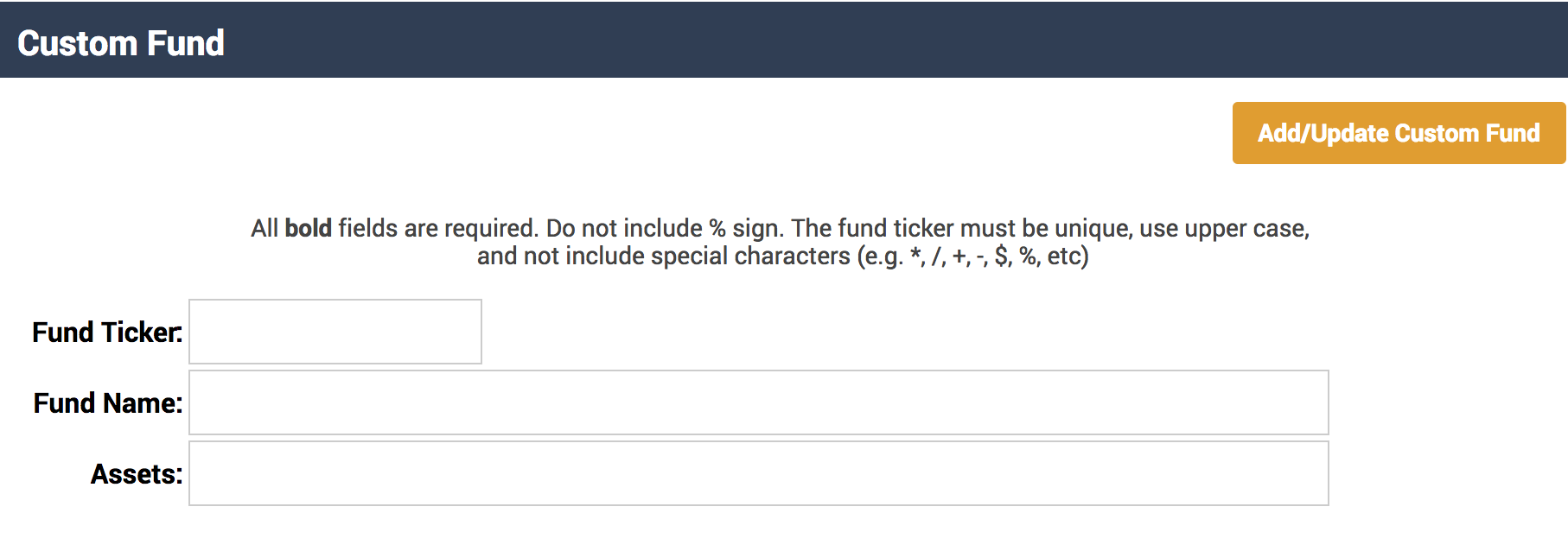
- You can enter Assets for the fund now, or you can add assets later.
- Click Add/Update Custom Fund in the upper right-hand corner to add your Custom Fund to your lineup. The window will close.
- Your Custom Fund will appear in your investment lineup on the Fund Lineup screen. You can add assets to this like you would any other fund by entering the asset figure into the Assets column for your Custom Fund.
Fund Status
Fund statuses can be changed manually from Fund Lineup. Optionally, you can use the Watch & Replace Rules feature to automate this process.
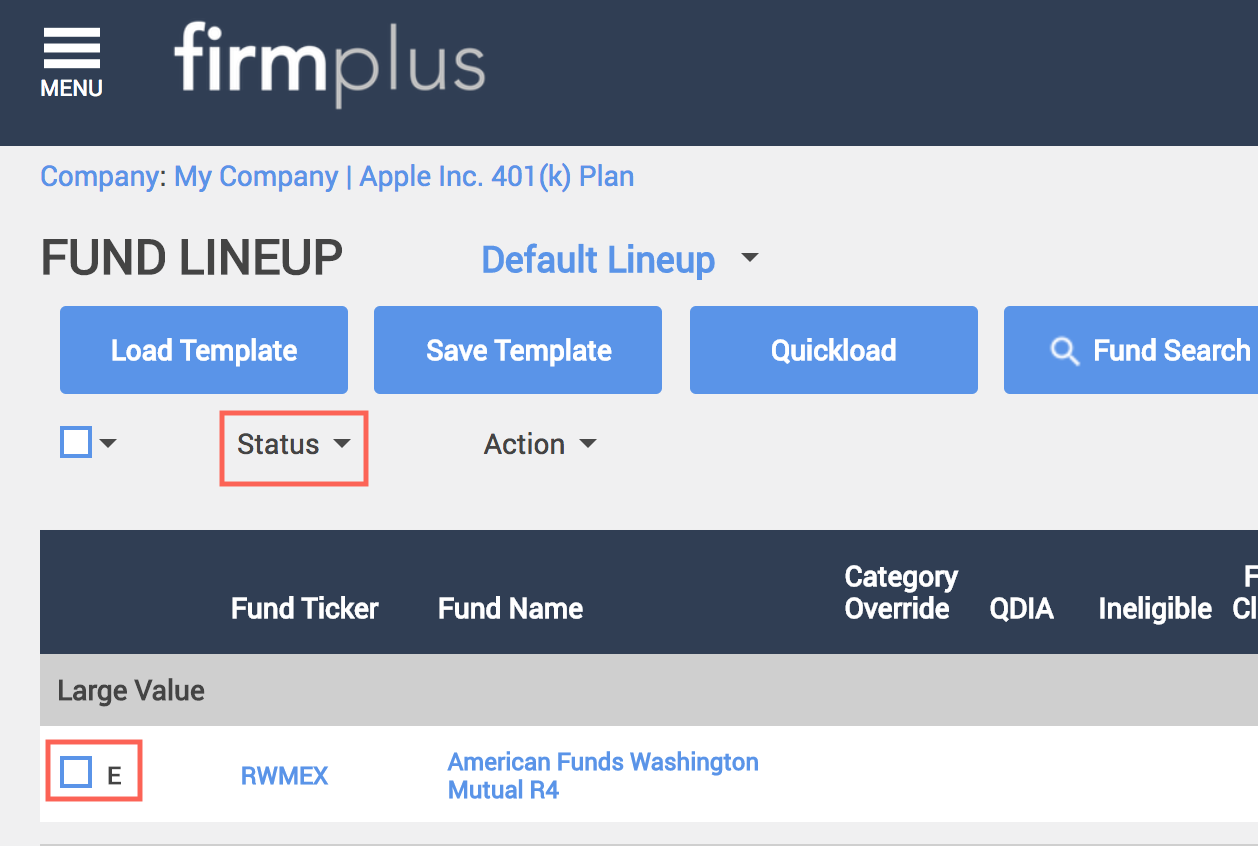
Fund statuses display next to the fund ticker. An overview of the fund status options are below:
- E - Existing
- P - Proposed
- R - To Be Replaced
- W - On Watchlist
- P & E - Proposed and Existing
How to Change a Fund's Status
- For any fund(s) you wish to change the status of, check the box to the left of the current fund status.
- Once you have selected the fund(s), under the Save Template button, hover your mouse over the Status dropdown.
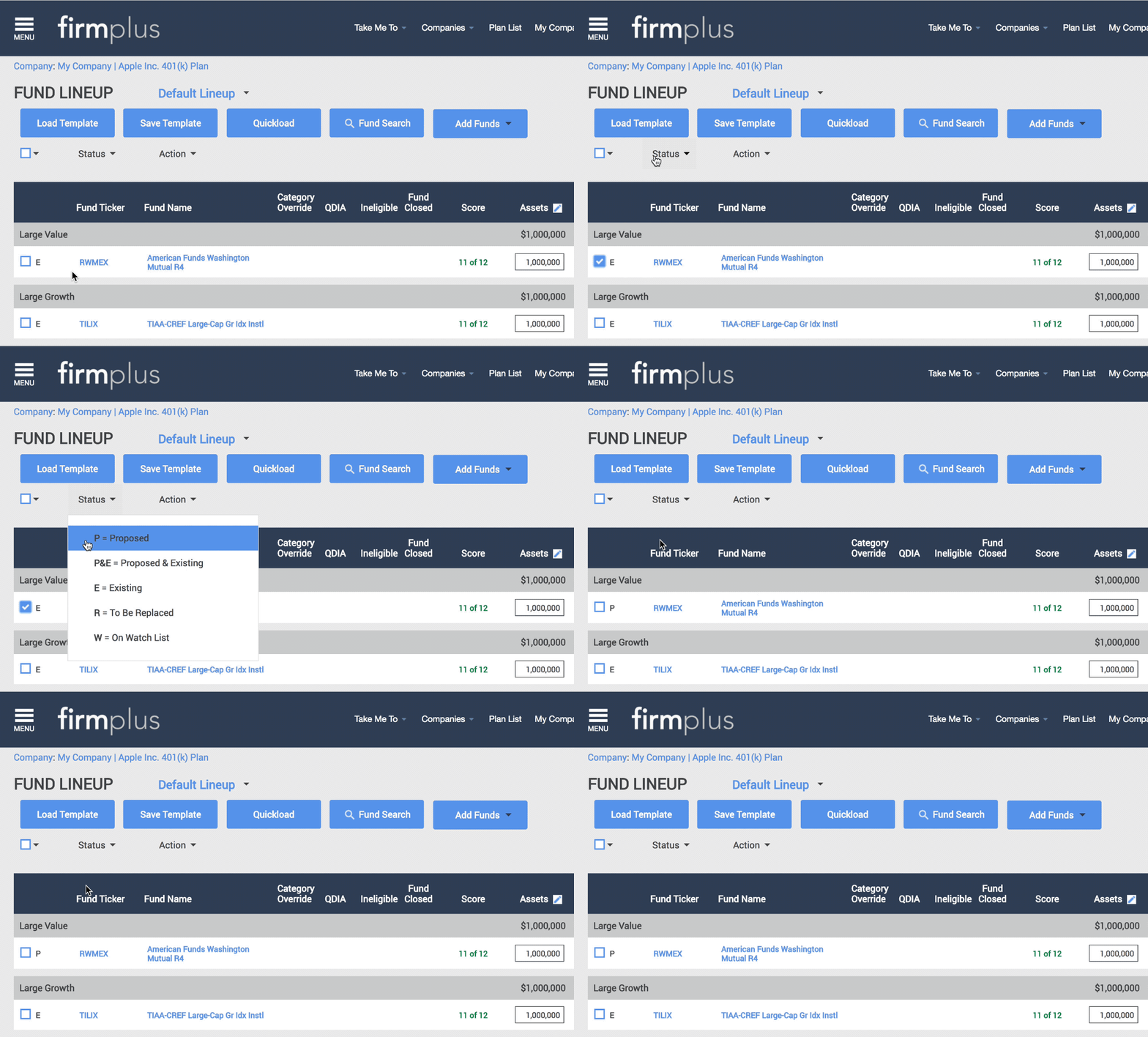
- From the Status menu, select a new fund status.The screen will refresh.
- The fund status will now be updated and saved.
How to Remove a Fund
Just as you are able to add funds to your lineup, you can remove them as well. You have the ability to remove single funds, or multiples at a time.
- From your lineup, click on the checkbox to the left of the fund name for the fund(s) you want to remove.
- Once you have selected the fund(s), hover over the Action dropdown menu.
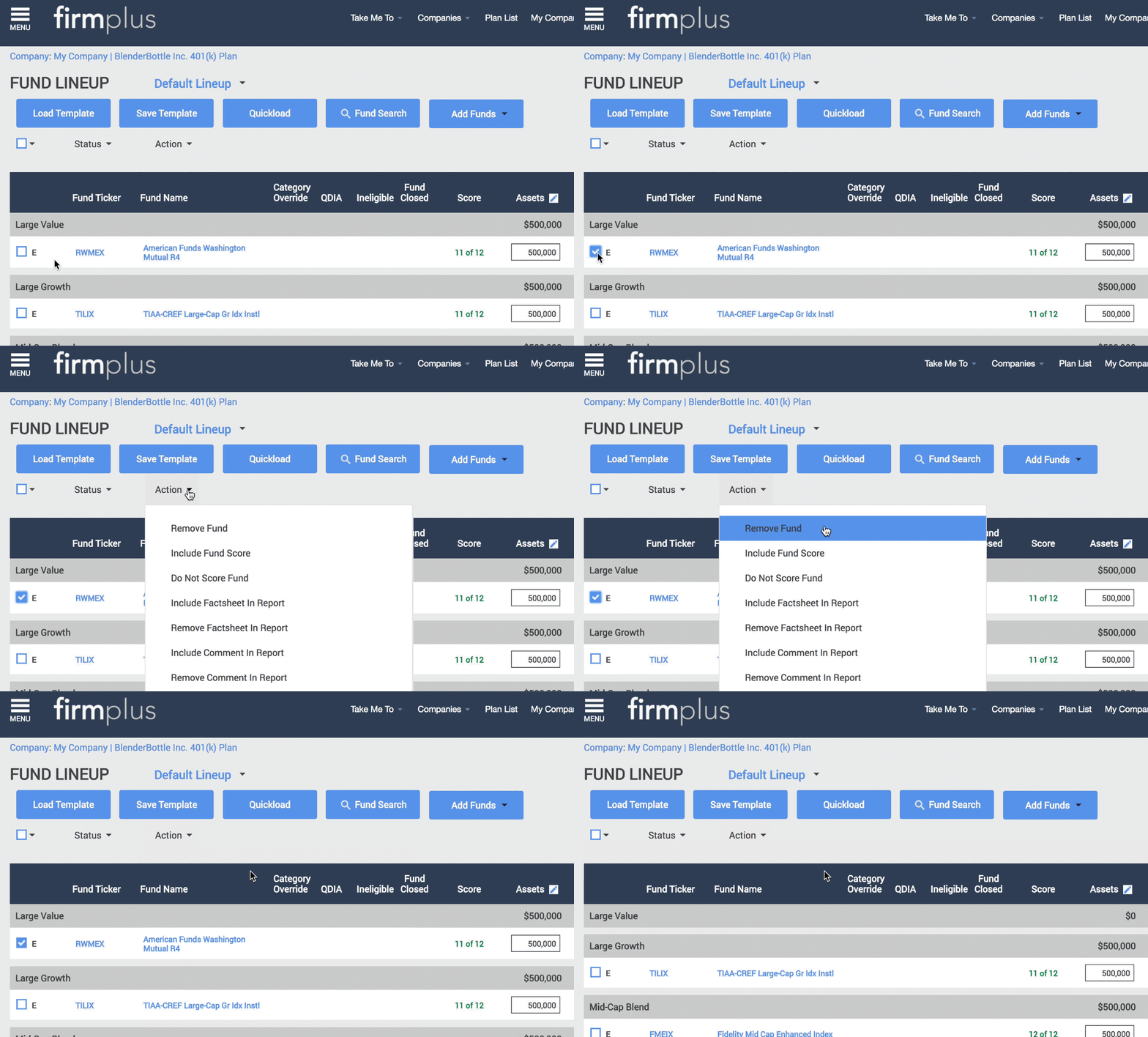
- From the Action menu, select Remove Fund. The screen will refresh.
- The funds you selected to be removed will be deleted from the fund lineup.
How to Add a Secondary Benchmark
FirmPlus allows for the selection of a secondary benchmark that will display in the Performance Summary report section. To add a secondary benchmark, follow the steps below.
- From your lineup, click on the icon to the far of the fund name for the fund you want to select.

2. Once you have clicked the icon, the Secondary Benchmark Display screen will pop-up.
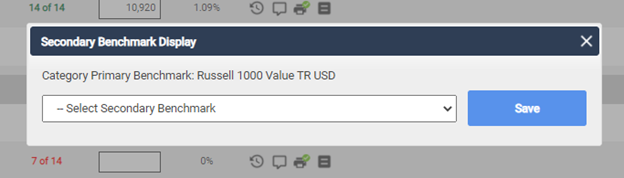
3. Click on dropdown list, select your desired secondary benchmark, then click Save.
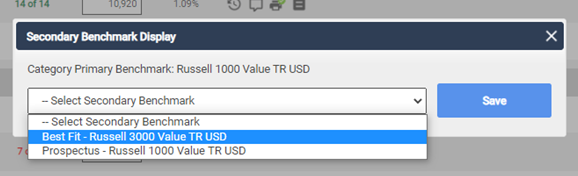
- Fund Lineup screen will refresh and icon will fill in green.

Fund Actions
From the Action menu, you can choose to apply the following actions to selected fund(s):
- Remove Fund - Removes a fund from the fund lineup (see above).
- Include Fund Score - Displays a fund's score online and in generated reports. This is enabled by default.
- Do Not Score Fund - Hides a fund's score online and in generated reports.
- Include Factsheet In Report - Includes the fund's factsheet when including the Fund Fact Sheet report section in generated reports. This is enabled by default.
- Remove Factsheet In Report - Removes the fund's factsheet when including the Fund Fact Sheet report section in generated reports.
- Include Comment in Report - Includes commentary entered for a fund in the Executive Summary report section. When adding a comment to a fund for the first time, this is enabled by default.
- Remove Comment in Report - Removes commentary entered for a fund from the Executive Summary report section. This does not delete the comment from the fund.
- Indicate Fund is QDIA on Executive Summary - Displays (Q) after a fund's name online and (QDIA) in generated reports on the Executive Summary report section.
- Exclude Fund is QDIA on Executive - Removes the display of (Q) after a fund's name online and (QDIA) in generated reports on the Executive Summary report section.
How to Apply a Fund Action
- From your lineup, click on the checkbox to the left of the fund name for the fund(s) you want to apply an action to.
- Once you have selected the fund(s), hover over the Action dropdown menu.
- From the Action menu, select an Action. The screen will refresh.
- The Action selected will be applied to funds you selected.