Setting up a new Plan allows you to establish your Client Plans and Prospect / Sample Plans. Once your Plan is created you can link it to a Customer or Prospect.
Plan Setup is a quick, multi-step process. Start with the Create a New Plan section below if you're new to FirmPlus, otherwise use the links below to jump to a section in this article.
In This Article
1
Create a New Plan
Creating a new Plan is the first step in this process. Once the Plan has been created, you will be able to set the evaluation criteria for how funds will be scored, and enter the Plan's investments and asset data.
- Log into FirmPlus.
- On the Plan Management screen, click the Add Plan button.
- Select an Advisor to add a Plan for in the drop-down list. (you may have one or multiple Plans dependent on how many FAIDs are tied to your account).
- Click OK. You will arrive on the Plan Info page.

- Enter a Plan Name in the Plan Name field.
- Select in the Plan is a Client or Prospect or Sample.
- Select in Plan Services are offered through Broker of Record or Advisory.
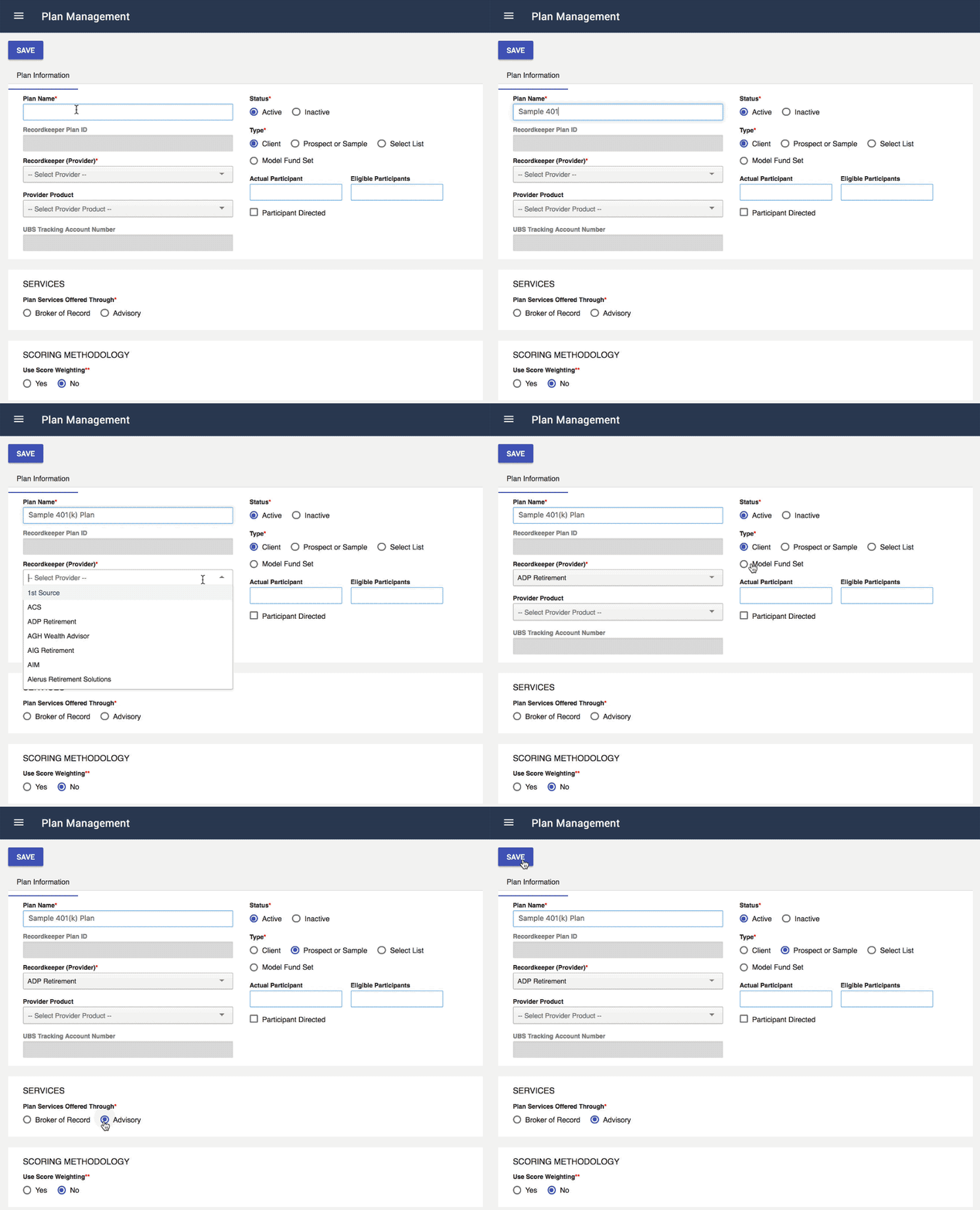
- Select if Score Weighting should be turned on. By default this option is turned off.
- Score Weighting allows you to assign points (out of 100) to each evaluation criteria (see Fund Evaluation Criteria below) and place more or less emphasis on selected evaluation criteria. This produces a fund score out of 100.
- Click Save on the left-hand side of the screen. A confirmation message will pop-up at the bottom of the page after a few seconds.
- Return to Plan Management. Your new Plan will now be visible.
Your Plan is now created! Now we need to set the Evaluation Criteria for the Plan. See step 2 below.
2
Evaluation Criteria
FirmPlus allows you to configure the Fund Evaluation Criteria for your plan. You can configure your Evaluation Criteria on a Plan basis as well as save/load Defaults for quick setup.
- Click on the Plan Name from Plan Management. You will arrive on the Fund Lineup page.
- Click the menu icon in the upper left-hand corner. The menu will slide in from the left.
- In the menu click the Setup Toggle.
- Click Fund Evaluation and then Evaluation Criteria
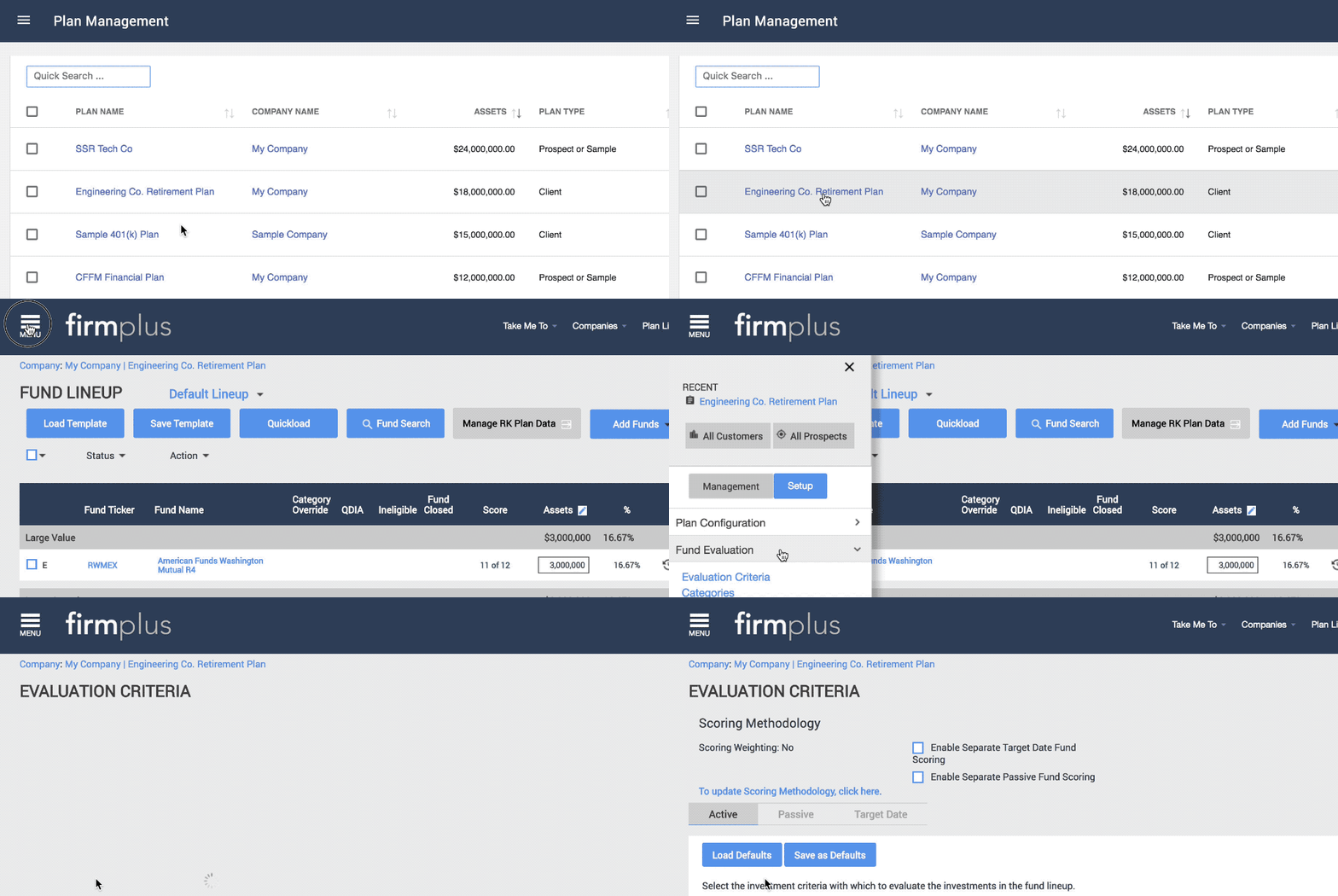
- On the Evaluation Criteria page, select Active Evaluation Criteria by clicking the drop-down box for the criteria you wish to use and choose a threshold option. Chosen criteria will highlight in blue.

- If you wish to use Separate Passive or Target Date Fund Scoring, please see the Evaluation Criteria article.
- At the bottom of the screen set the Scoring Threshold. This defines how many of the chosen evaluation criteria need to be met for a fund to be considered "Passing" overall.

- Click Save in the upper right-hand corner to save your selections.
Your Plan's Fund Evaluation Criteria are now saved! The last step is to set up the Fund Lineup for your Plan. See step 3 below.
3
Fund Lineup
FirmPlus offers many ways to create the fund line-up for your Plan. The Fund Lineup screen allows you to setup your investment line-up, enter fund assets, search for replacement funds, enter fund commentary, enter Plan fee data, and many other activities.
- Click the menu icon in the upper left hand corner. The menu will slide in from the left. In the menu click the Management toggle option. Click the Investment Management option, and then click Fund Lineup.
- On the Fund Lineup screen, enter the funds in your Plan. There are many ways to do add funds to your plan -- the following steps cover the simplest method.
- Click the blue Quickload button near the top of the screen.

- On the Fund Ticker Load screen enter the tickers of the funds in your lineup in the open text box using one of the methods below.

- Manually type in Ticker Symbols, separated with a comma or space.
- Copy and paste tickers in from a spreadsheet or document.
- Use the Look-Up feature to locate Ticker symbols.
- In the Add As area choose a Fund Status by selecting an option from the drop-down list. A legend is above the drop-down list which defines each Fund Status option.

- Click the Submit button.
- A confirmation message will appear confirming that your funds have been added. Any funds that were not located will display in red.
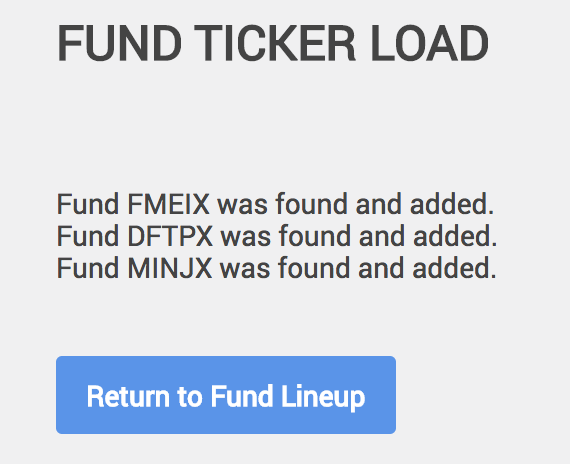
- Click the Return to Fund Lineup button. You will return to the Fund Lineup screen and funds you added will be visible.
- You can optionally enter the fund's assets in the Assets column for each fund.

- When finished adding Funds and entering Assets, click the Save button in the upper right-hand corner.
Your fund lineup and fund assets are now setup and saved!
For more information on Fund Lineup and advanced features see the Fund Lineup article.
🎉 Congratulations on setting up your Plan! 🎉
You are now ready to generate an Investment Monitoring report.