The Report Archive is where you can download generated reports and review the status of reports that have been requested. Each time you generate a new report, a new record will appear in the Report Archive.
In This Article
How to Access Reports in the Report Archive
The Report Archive is where you can download generated reports and review the status of reports that have been requested. Each time you generate a new report, a new record will appear in the Report Archive.
How Do I Access the Report Archive?
- Select a Plan from the Plan Management screen. You will be taken to the Fund Lineup page.
- Click the Menu button in the upper left-hand corner.
- Select the Management tab.
- Click the Archives and Portal menu option. Click Report Archive in the drop-down menu.
- Access the Report Archive for a Plan (see above).

- If a report is still in the process of being generated, the Report Status column will show "In Process". Reports that are in process will have the download link to the left disabled.
- Once a Report has been successfully generated, the Report Status column will update to Complete, and the download link will become active.
- Click the link to the left to download your report.
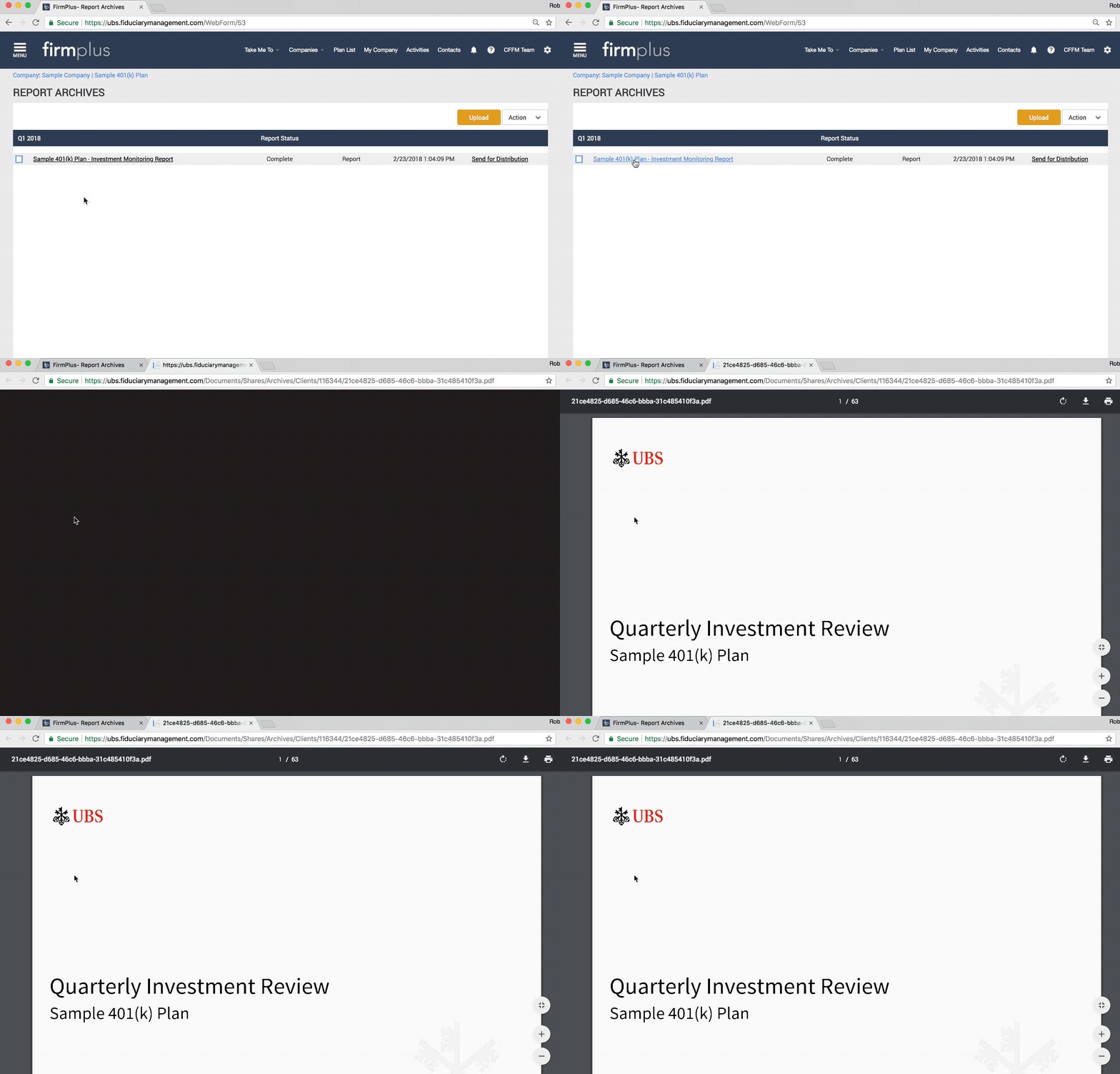
- The Report will download to your computer, or open up in a new tab (depending on your internet browser settings).
How to Delete Reports in the Report Archive
After a report has been generated, if necessary, you can delete the report from the Report Archive.
WARNING: Deleting reports form the Report Archive is permanent. There is no way to recover a deleted report.
- Access the Report Archive for a Plan (see above).
- Check the check-box next to the name of the report(s) you wish to delete.
- Click the Action drop down and click Remove Reports.

- The report will be deleted from the Plan's Report Archive.