The HSA Investment Monitoring Report option in FirmPlus provides investment monitoring and analysis for HSA Plans. The HSA Report option is intended for approved HSA investment consulting engagements through the RPCS program.
Generating a report assumes you have setup a Plan. If you need help setting up a Plan, check out the Setting Up a New Plan article for a quick walkthrough.
In This Article
How to Generate an HSA Investment Monitoring Report
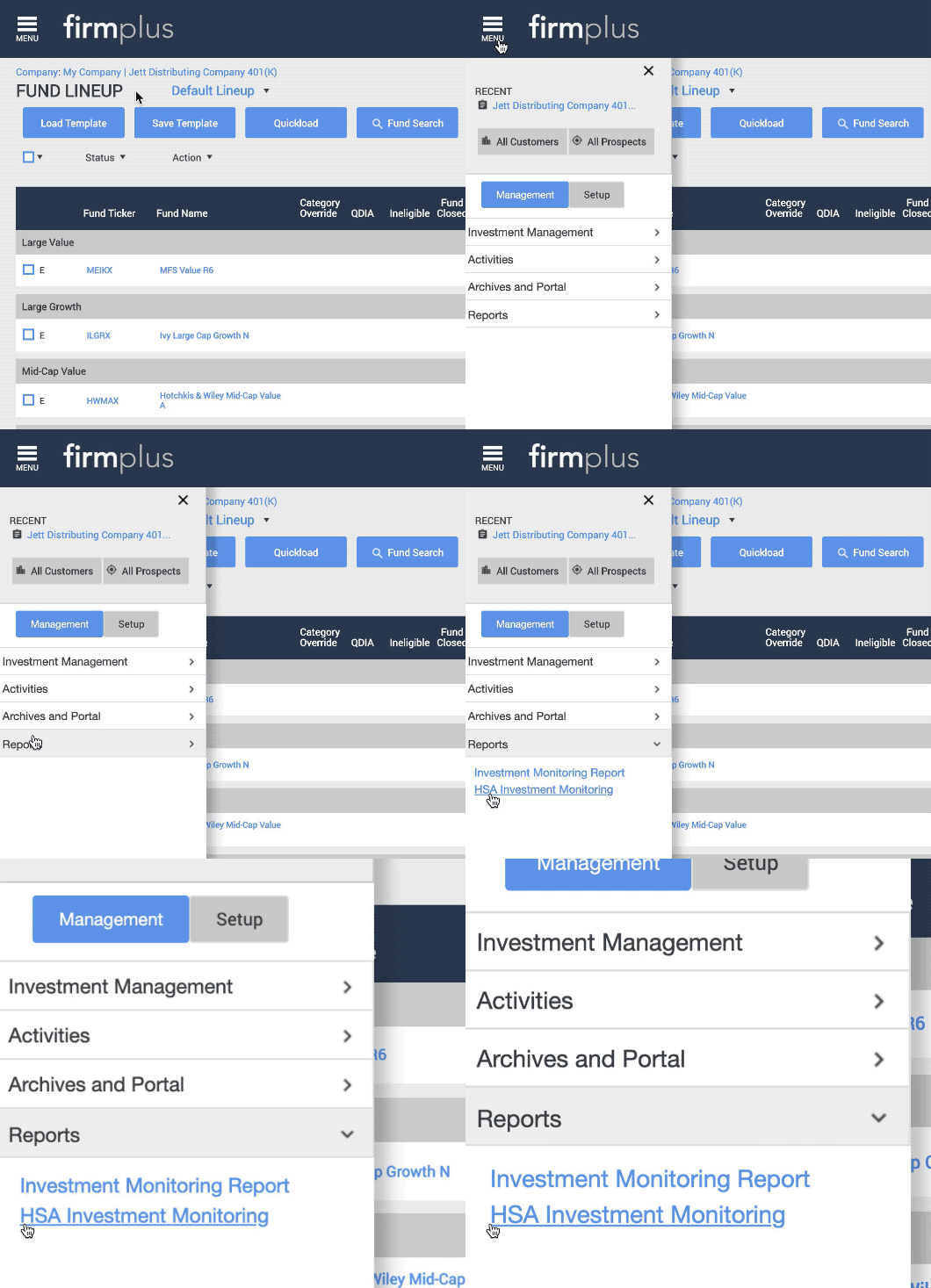
- Select a Plan from the Plan Management screen. You will be taken to the Fund Lineup page.
- Click the Menu button in the upper left-hand corner.
- Select the Management tab.
- Click the Reports menu option. Click HSA Investment Monitoring in the drop-down menu.
- When arriving on the Report page for the first time, the UBS default report configuration will be populated in the HSA Investment Monitoring Chosen list to the right. Otherwise, your most recently generated report configuration will appear.
- Edit the include report sections and their order in the Chosen list as necessary.
- When ready to generate the report, click the blue Generate Report button.
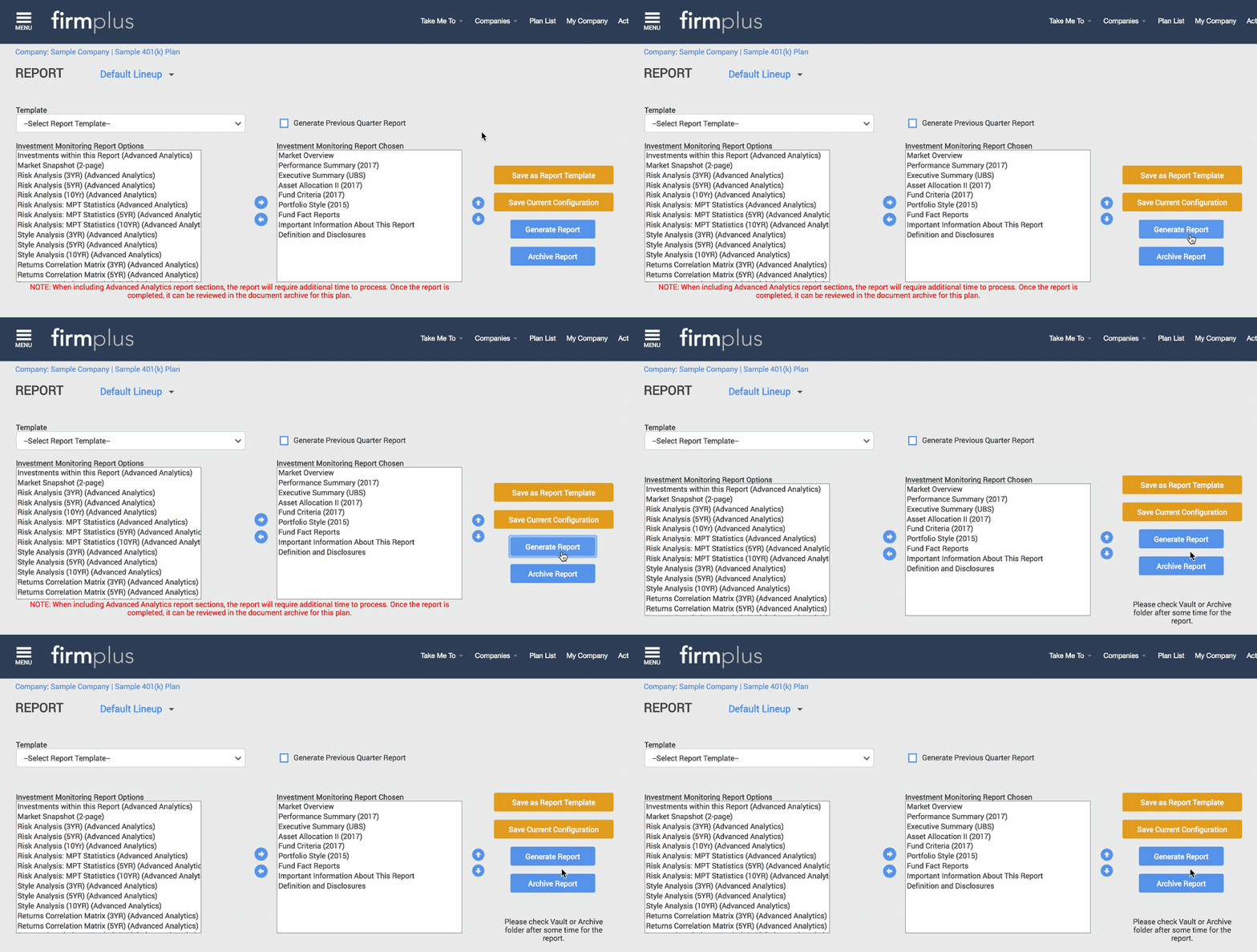
- A note will pop-up confirming the report is being generated and will be delivered to the Report Archive when completed (see below).
Generating reports that contain "Advanced Analytics" report sections will increase the processing time required to deliver the report to the Report Archive.
How to Configuring Report Sections and Order
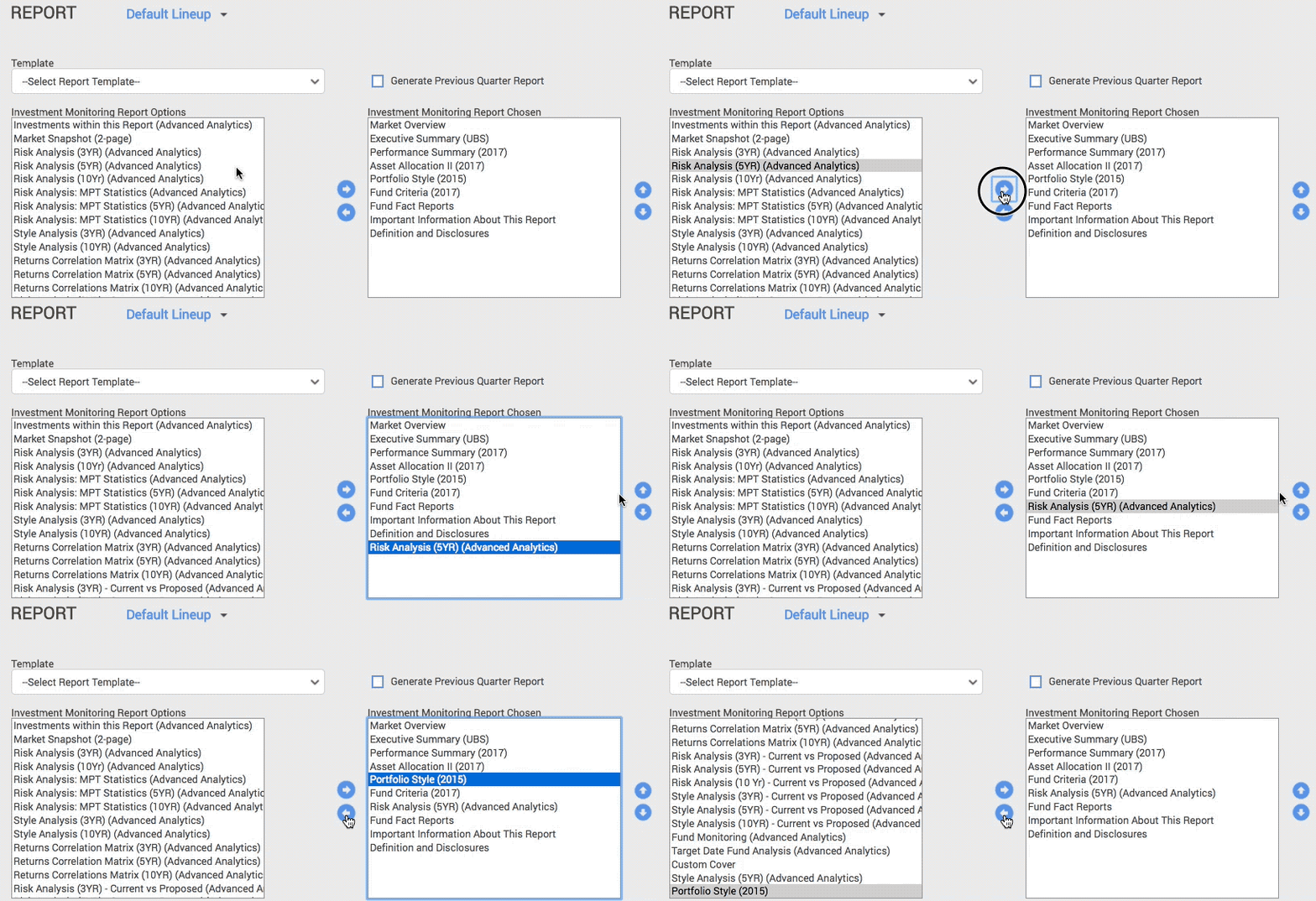
When arriving on the Report Generation screen, there are two Report Section Lists displayed. The list on the left are Available Report Sections that can be included in your report. The list on the right are Chosen Report Sections that have been selected to appear in the report you generate.
You can move sections between lists by clicking on the Report Section and clicking the left or right pointing arrow between the two Report Section lists. The included report sections and their order in the Chosen list determines what will be included in a generated report.
There are a number of report sections that are required to be included in your HSA Report, and cannot be removed. These sections are appended with the label (Locked) in the report section list.
How to Access Reports in the Report Archive
The Report Archive is where you can download generated reports and review the status of reports that have been requested. Each time you generate a new report, a new record will appear in the Report Archive.
How Do I Access the Report Archive?
- Select a Plan from the Plan Management screen. You will be taken to the Fund Lineup page.
- Click the Menu button in the upper left-hand corner.
- Select the Management tab.
- Click the Archives and Portal menu option. Click Report Archive in the drop-down menu.
- Access the Report Archive for a Plan (see above).

- If a report is still in the process of being generated, the Report Status column will show "In Process". Reports that are in process will have the download link to the left disabled.
- Once a Report has been successfully generated, the Report Status column will update to Complete, and the download link will become active.
- Click the link to the left to download your report.

- The Report will download to your computer, or open up in a new tab (depending on your internet browser settings).