The Lineup Comparison Report option in FirmPlus provides a single report which compares the investment performance and expenses of multiple investment lineups. You can choose to include as few as 2 investment lineups, or as many as 5. This report is great for proposing one or multiple alternative investment lineups to a client or prospect.
Setting up the Lineup Comparison Report is done in three steps:
1. Configure Lineups for Report
For each lineup you plan to include in the report, you will need to create a separate lineup in the Plan. Follow the steps below to complete this task.
- Select a Plan from the Plan Management screen. You will be taken to the Fund Lineup page.
- Click the Main Menu Icon in the upper left-hand corner. The menu will slide in from the left.
- Click the Setup option toggle.
- Click Investment Management and then Fund Lineup Management in the expanded menu.
- On the Fund Lineup Management screen, create as many lineups as you will need for the report.
If you need assistance creating a Lineup, see the Fund Lineup Management article.
- In the Lineups section mark the checkbox to the right of the row for the lineups you wish to include in the report.

- You can change the order in which lineups show in your Lineup Comparison Report by using the up / down arrows in the Sort column.
2. Setup Investment Lineups
Now that the investment lineups are setup, you can now add investments and assets to them. Follow the steps below for directions on how to add investments and asset date to each unique lineup.
- Select a Plan from the Plan Management screen. You will be taken to the Fund Lineup page.
- Click the Main Menu Icon in the upper left-hand corner. The menu will slide in from the left.
- Click the Management option toggle.
- Click Investment Management and then Fund Lineup in the expanded menu.
- Select the Lineup you wish to add investment data to from the Lineup Selection box towards the top of the screen.
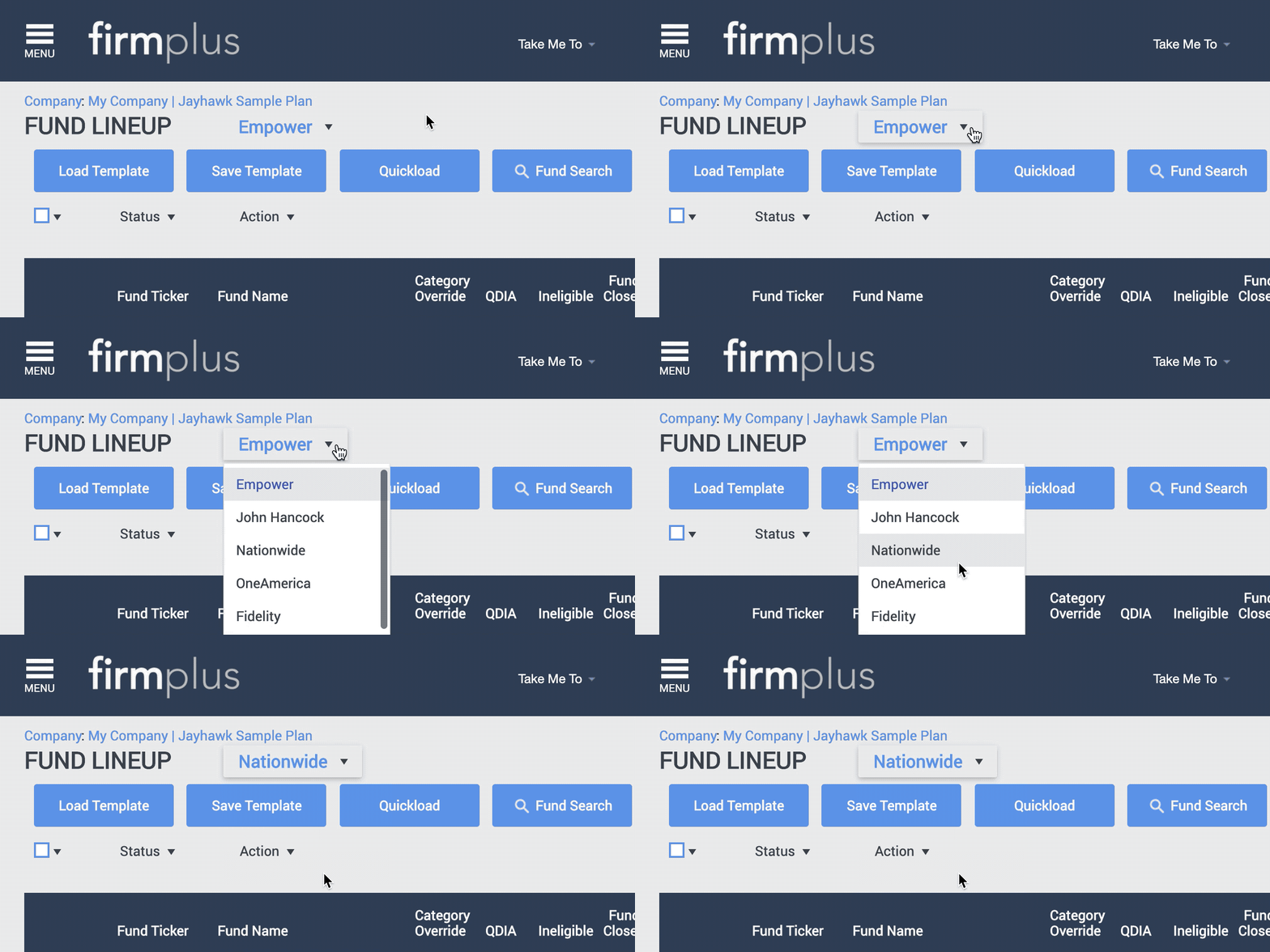
- Add investments and assets to the lineup using whichever feature you prefer. If you need assistance adding funds to the lineup, check out the Fund Lineup article for a walkthrough.
- After you are finished adding investments and asset data, click Save.
- Repeat this process for all Lineups you are including in your Report.
3. Generate the Lineup Comparison Report
Now that you have your lineups set and have added investment / asset data, you're now ready to generate your Lineup Comparison Report!
- Select a Plan from the Plan Management screen. You will be taken to the Fund Lineup page.
- Click the Menu button in the upper left-hand corner.
- Select the Management tab.
- Click the Reports menu option. Click Lineup Comparison in the drop-down menu.
- When arriving on the Report page for the first time, the UBS default report configuration will be populated in the Lineup Comparison Chosen list to the right. Otherwise, your most recently generated report configuration will appear.
- Edit to include the optional report section (if desired) and the report section order in the Chosen list as necessary.
- When ready to generate the report, click the blue Generate Report button.
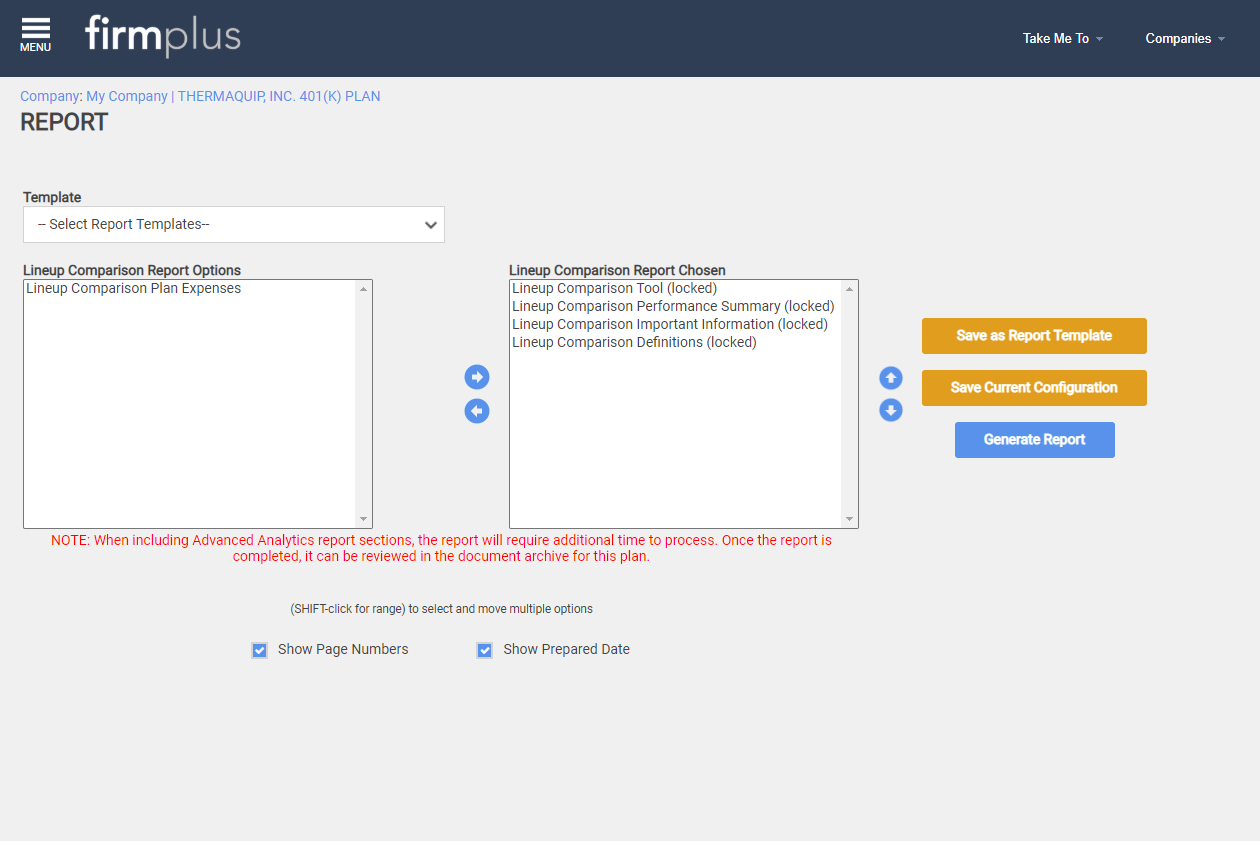
- A note will pop-up confirming the report is being generated and will be delivered to the Report Archive when completed (see below).
How to Access Reports in the Report Archive
The Report Archive is where you can download generated reports and review the status of reports that have been requested. Each time you generate a new report, a new record will appear in the Report Archive.
How Do I Access the Report Archive?
- Select a Plan from the Plan Management screen. You will be taken to the Fund Lineup page.
- Click the Menu button in the upper left-hand corner.
- Select the Management tab.
- Click the Archives and Portal menu option. Click Report Archive in the drop-down menu.
- Access the Report Archive for a Plan (see above).

- If a report is still in the process of being generated, the Report Status column will show "In Process". Reports that are in process will have the download link to the left disabled.
- Once a Report has been successfully generated, the Report Status column will update to Complete, and the download link will become active.
- Click the link to the left to download your report.

- The Report will download to your computer, or open up in a new tab (depending on your internet browser settings).