Reports generated in FirmPlus can be distributed to Plan Sponsor clients using the Report Distribution feature of FirmPlus.
Using the Report Distribution feature will allow you to archive Reports into Statements & Reports, have UBS email the final report to your client, and eliminates the need to scan reports and evidence of delivery into your DMS system.
Should you wish to distribute your report directly, the Mark Report As Final feature will allow you to indicate which report in the Report Archive is the final version, enabling UBS to track client transitions to the new tool.
In This Article
How to Distribute Reports
Reports that are generated for Plans can be distributed to your client. Reports that have been set to be distributed are processed overnight and emails are sent to clients within 24 hours thereafter.
There are a few conditions that must be met in order to be able to distribute a report:
- The Plan is linked to the UBS data feed – e.g. manually created Plans cannot use this feature.
- The report is <= 10 MB.
- A Plan Sponsor email address is available.
- Only system-generated Reports can be distributed via the Report Distribute process.
- If a Plan Sponsor Email address is not available, you can learn how to make the update in the UBS CAI system here.
The following Reports are setup for Report Distribute
- Investment Monitoring Report
- HSA Investment Monitoring
- The following reports are NOT setup to distribute via the Report Distribute process
- UBS Select (BOR) Investment Report
- Investment Fee Analysis
- Lineup Comparison Report
- Manager Comparison Report
- Even if your Plan meets the above requirements, the following Plans are not setup to distribute, so you will not see the Distribute icon or Marked As Final
- Access a Plan from the Plan Management screen.
- Generate a Report for the Plan if you have not already done so.
- Access the Report Archive.
- In the report archive, in the "Finalize / Archive and Email" column, click the Mail icon (envelope) in the row for the report you wish to distribute. It's recommended to confirm you are distributing the correct report by clicking the report name and reviewing before distributing.
- A confirmation message will appear. Click Confirm to proceed with distributing the report.
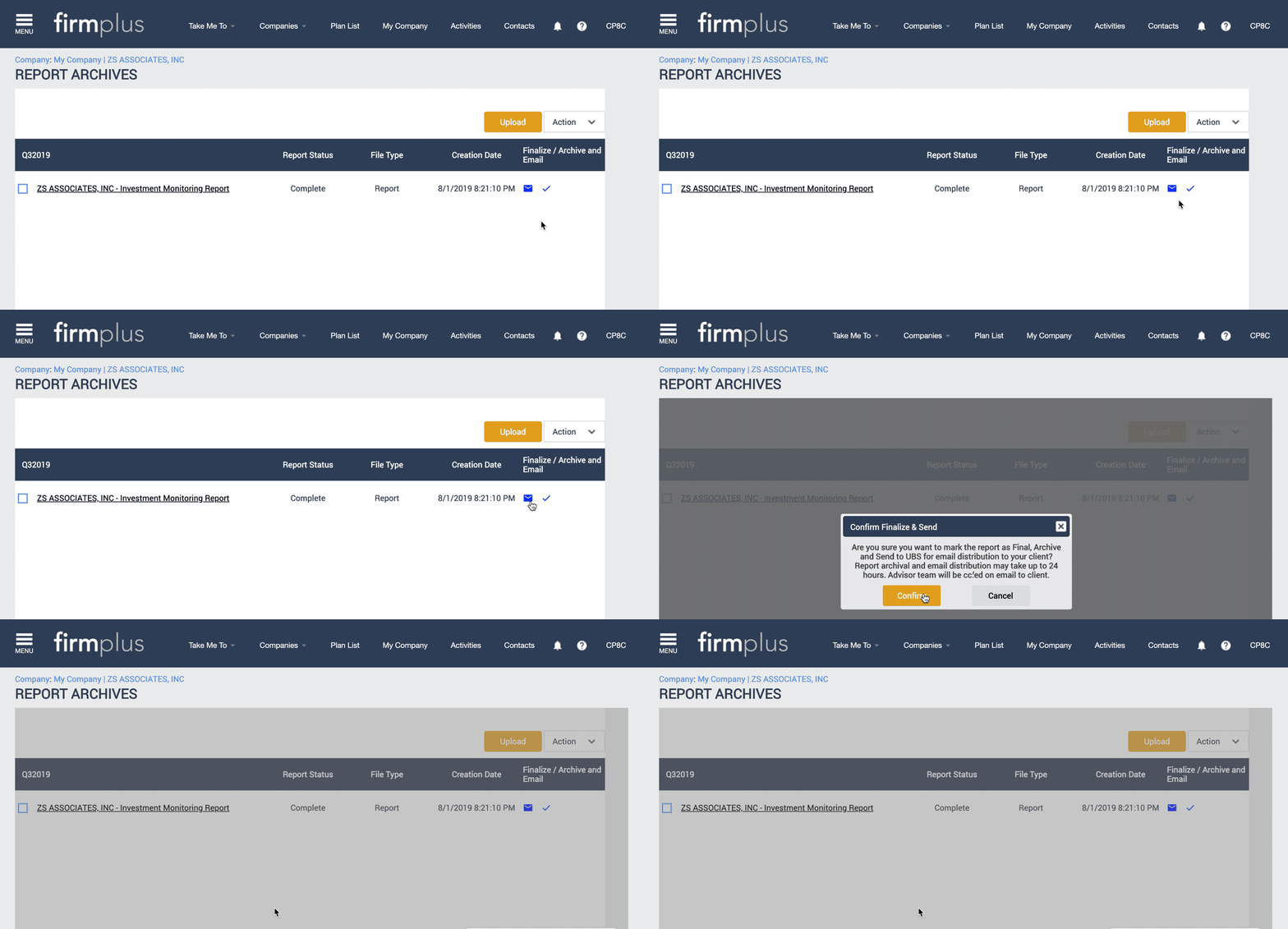
- A Please Wait message will appear on the screen.
- When complete, a confirmation message will appear on the screen with a link to return to the Report Archive.
- When returning to the Report Archive you will now see the report shows Marked as Final, Archived and Sent to UBS in the "Finalize / Archive and Email" column.
- When the report is emailed to the client, the Advisor will be CC'd on the email message.
- After completing the Report Distribution process, distribution can not be canceled. If you need to send a different Report to your client you will need to repeat the report distribution steps with a different report in the Report Archive.
How to Mark Reports as Final
If you choose to deliver a Report manually to your client, you can mark the Report as the final version in the Report Archive to document the task being completed and record your client's transition to FirmPlus reporting.
- Access a Plan from the Plan Management screen.
- Access the Report Archive.
- In the report archive, in the "Finalize / Archive and Email" column, click the Checkmark icon in the row for the report you manually sent to your client.
- A confirmation message will appear. Click Confirm to proceed with marking the report as final.
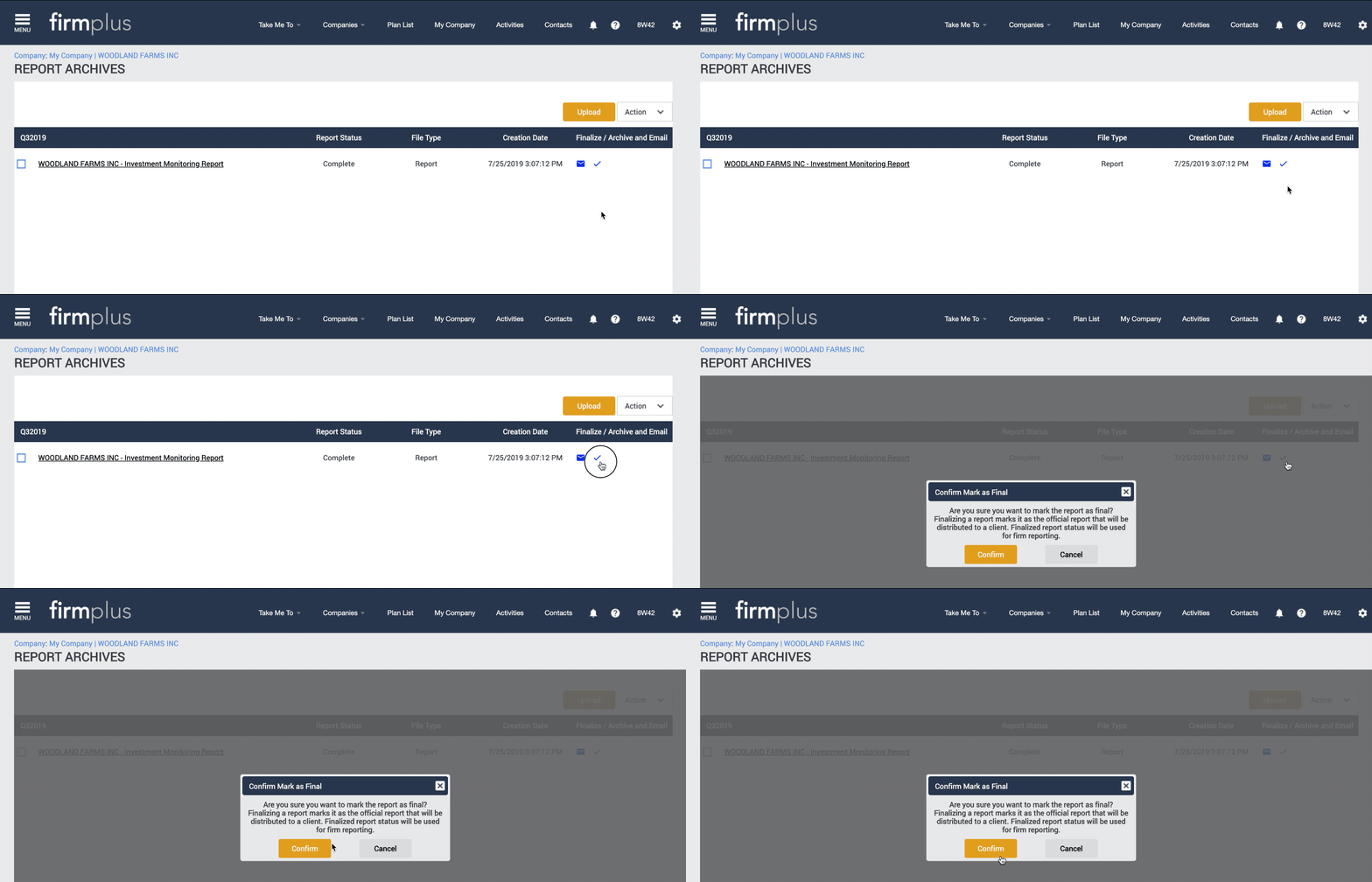
- A Please Wait message will appear on the screen.
- Once the process is complete, a confirmation message will appear on the screen with a link to return to the Report Archive.
- When returning to the Report Archive you will now see the report shows Marked as Final in the "Finalize / Archive and Email" column.
ImportantThe plan report and proof of delivery must be scanned into DMS as evidence. Be sure to complete this step in conjunction with marking the report as final in FirmPlus.