The Share Class Analysis Report provides a reporting capability for users to compare the net expense ratio of current mutual fund investments held in the plan to other share classes of the same mutual fund to indicate when the plan is not using the lowest cost share class possible and enable the advisor to document the rationale for not using the share class with the lowest expense ratio.
In This Article
Configure Share Class Analysis
- Select a Plan from the Plan Management You will be taken to the Fund Lineup page.
- To access the Share Class Analysis screen, users can either be redirected via the Share Class Analysis button on the Fund Lineup page or via the Menu dropdown by expanding the Investment Management section and selecting Share Class Analysis.
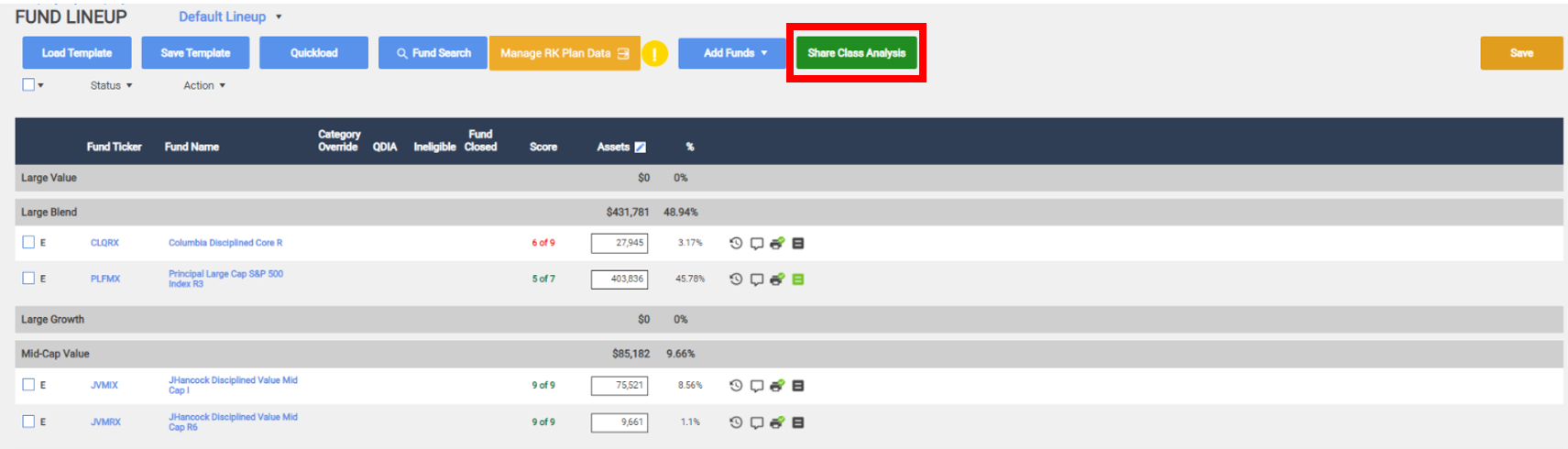
OR

When the Share Class Analysis button displays in red, this means that there is required action on the Share Class Analysis page. When the button is yellow, this means that next quarter there will be required action on the Share Class Analysis page. When the button displays in green, this means the analysis is complete and is not required for this quarter. (Note: As of the time of its release, the Share Class Analysis is not a required report section. This is scheduled to become a required report section in Q1 2023.)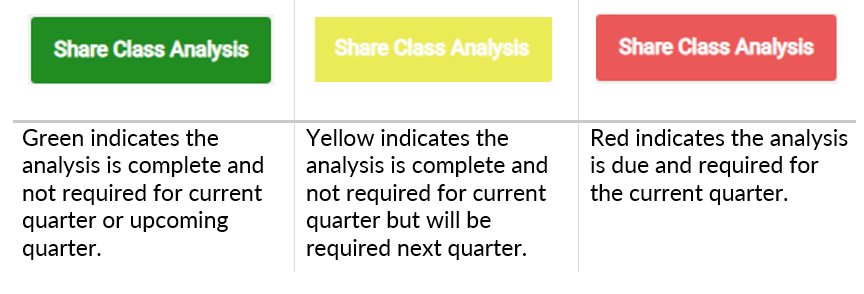
3. Select the Refresh Analysis button to update the analysis. The screen will now display the funds in your plan lineup and their corresponding status.
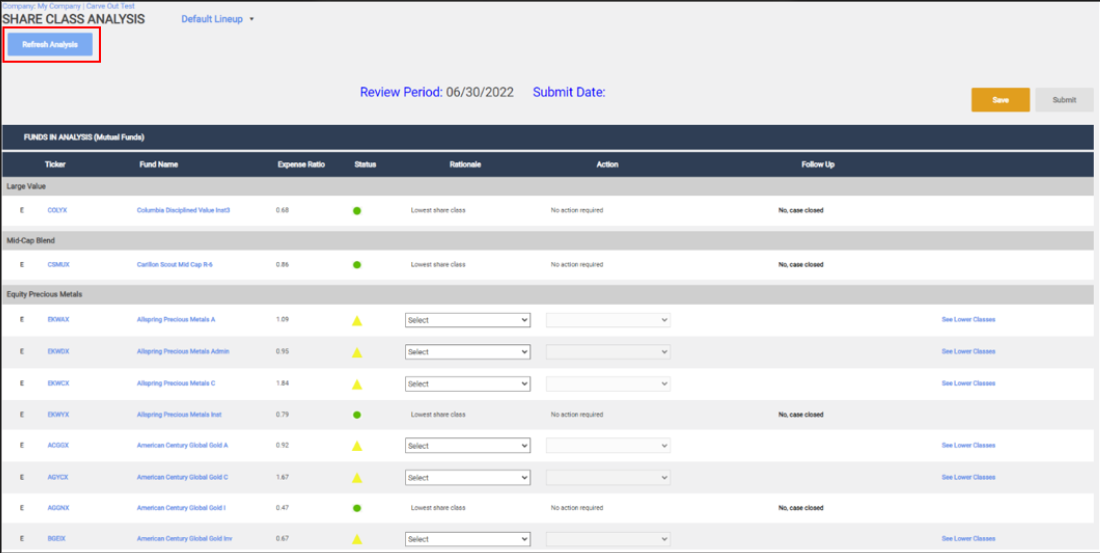
a. For funds that meet the lowest share class requirements, the analysis screen will display Lowest Share Class/No Action Required, as well as an Approved status symbol.
b. For funds that do not meet the lowest share class requirements, the analysis screen will display the Action Required status symbol, while the Rationale dropdown field will display Select, the Action dropdown field will be disabled, and a See Lower Classes link is available for reference.
c. NOTE: All Non-Mutual Funds will display in the FUNDS NOT IN ANALYSIS (All Other Security Types) section for user reference.
4. For funds that do not meet the lowest share class requirements, select the desired rationale and action selections via the Rationale dropdown selector and corresponding Action dropdown selector. If the rationale is an approved selection, the status symbol will change to reflect the updated status.
5. Once any rationale and actions selections have been made, users can click the Save button and save their analysis progress. Once all rationale and actions selections have chosen, users can click the Submit button to submit selections for report validation.


Configure the Share Class Analysis Report
When arriving on the Report Generation screen, there are two Report Section Lists displayed. The list on the left are Available Report Sections that can be included in your report. The list on the right are Chosen Report Sections that have been selected to appear in the report you generate.
You can move the Share Class Analysis report section into your Investment Monitoring Report by selecting the menu item labeled Share Class Analysis and clicking right pointing arrow between the two Report Section lists. The included report sections and their order in the Chosen list determines what will be included in a generated report.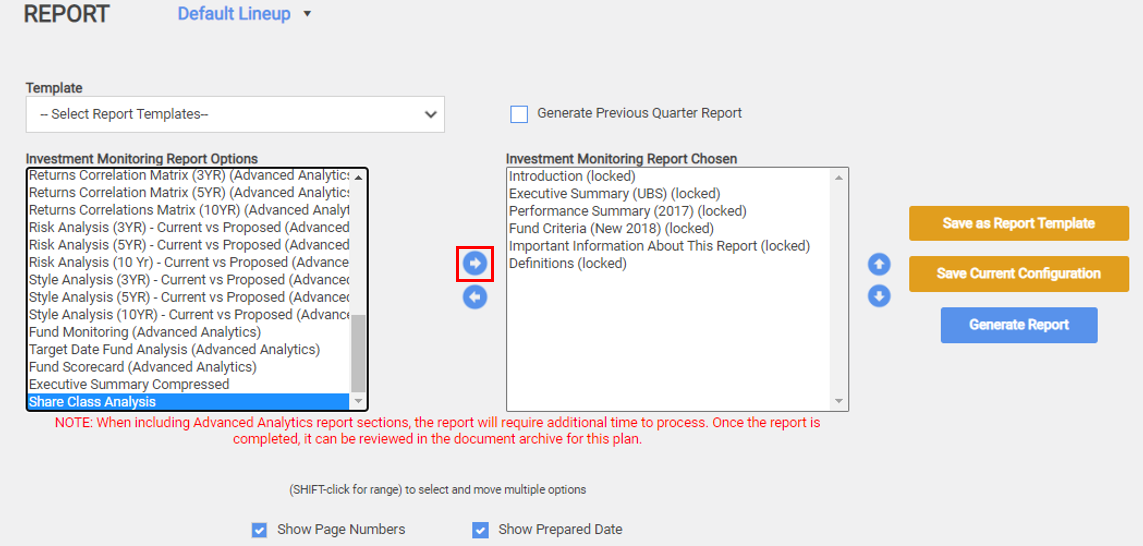
Note: To include the Share Class Analysis report section into your Investment Monitoring Report, you will first be required to complete the analysis on the Share Class Analysis page. If the analysis has not been completed and saved, the Investment Monitoring Report will not generate. To remove the Share Class Analysis report section from your Investment Monitoring Report, select the menu item labeled Share Class Analysis and click the left pointing arrow between the two Report Section lists.
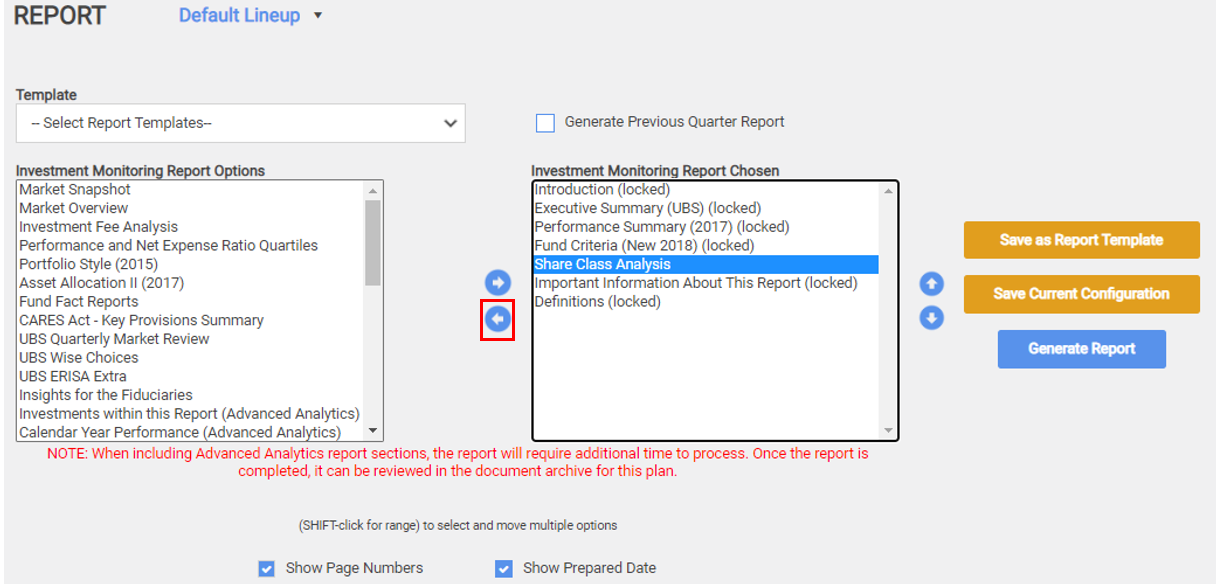
There are a number of report sections that are required to be included in your Investment Monitoring Report, and cannot be removed. These sections are appended with the label (Locked) in the report section list.
How to Access Reports in the Report Archive
The Report Archive is where you can download generated reports and review the status of reports that have been requested. The new Share Class Analysis report section will be included in your Investment Monitoring Report.
Click here for help with accessing the Report Archive.