Below are various best practices tips to help you in maximizing your efficiency when using FirmPlus. This article is updated regularly as we receive feedback from users.
Fund Search – UBS Eligibility Dropdown Filter
The UBS Eligibility dropdown feature is designed to give users the ability to filter their fund search to display only UBS eligible funds.
You can access this feature via the Fund Search button on the Fund Lineup page.
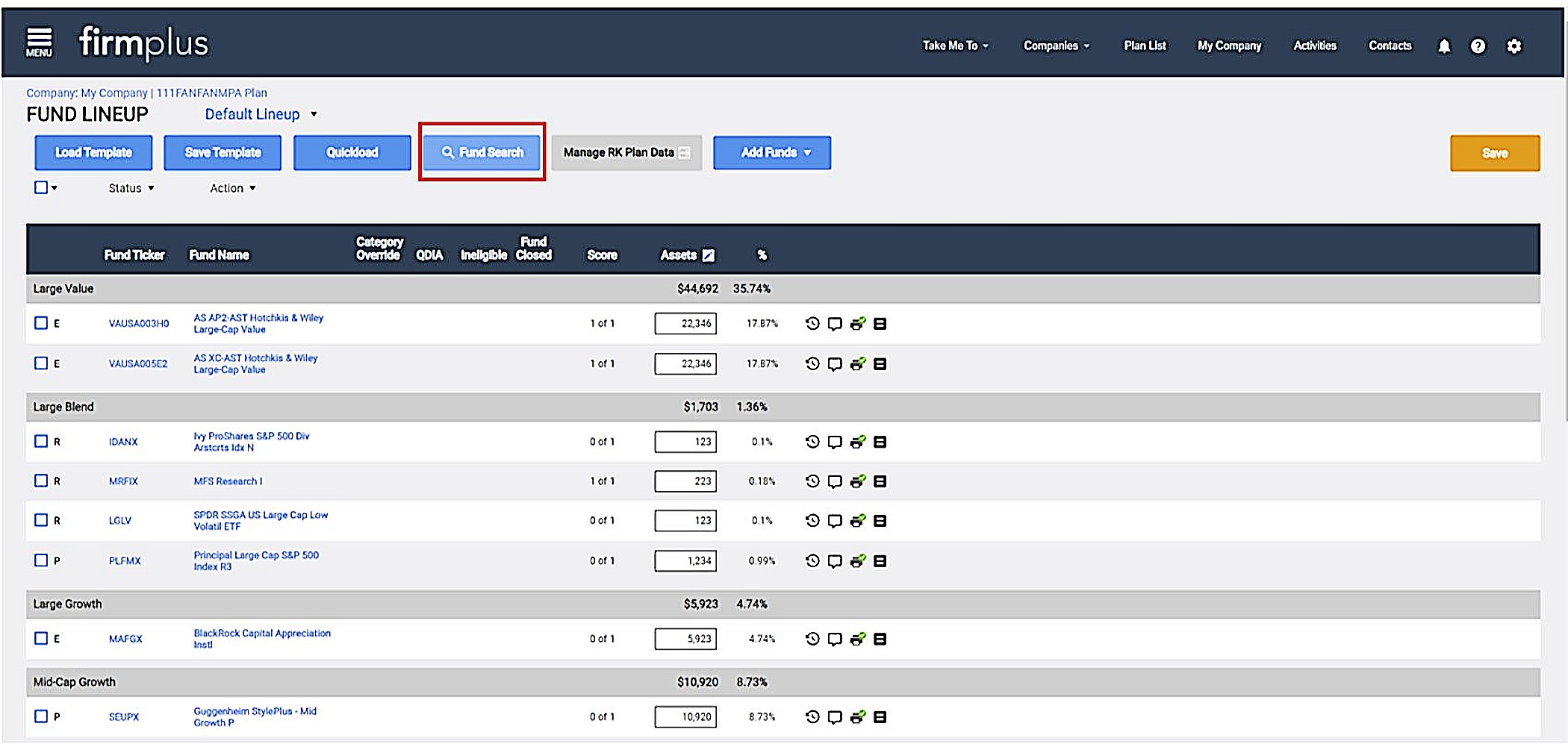
Within the Fund Search page users are now able to filter their fund search by either All Funds or UBS Eligible Only funds.
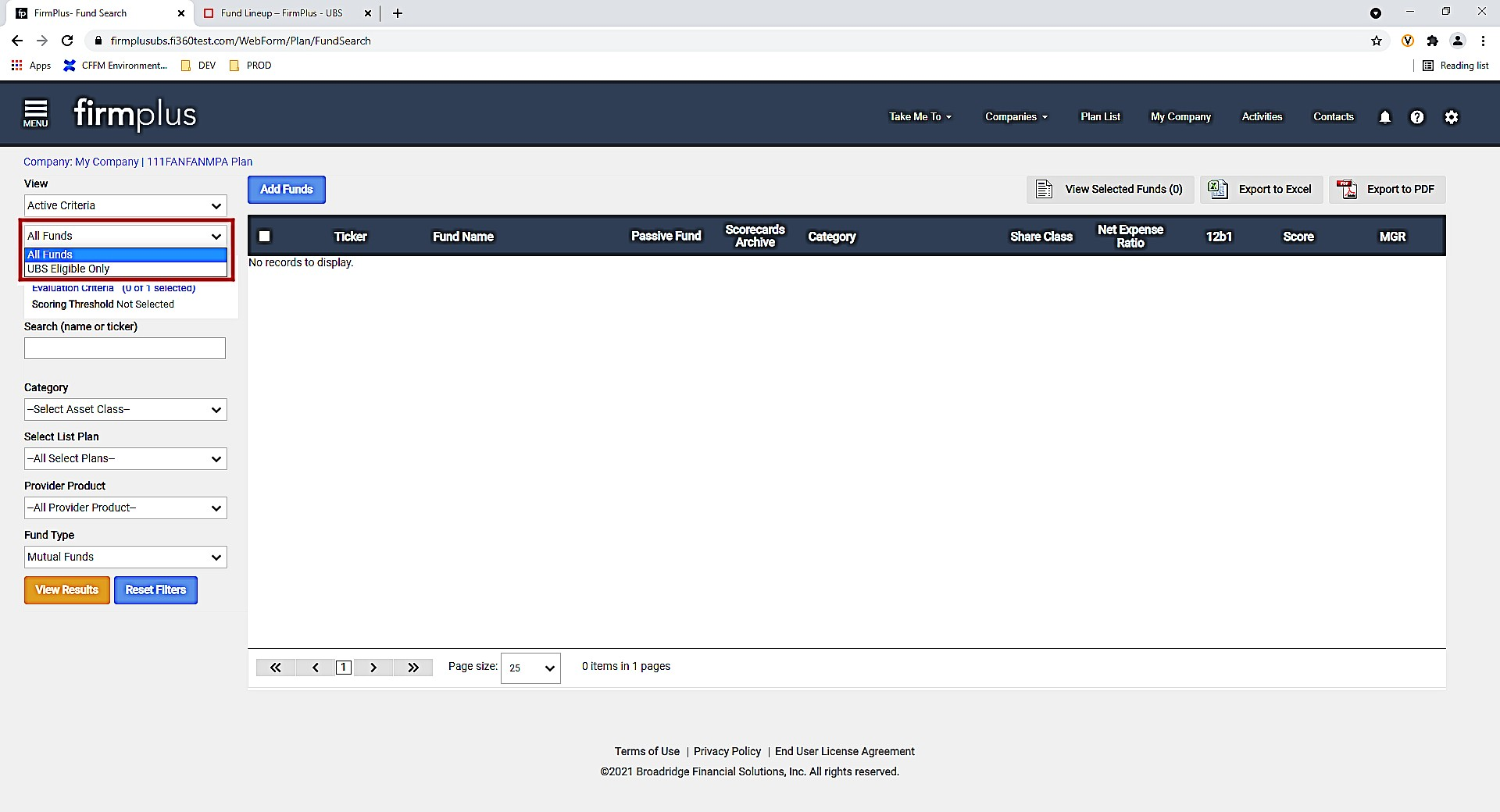
Filter funds to only show UBS Eligible funds
- In the upper left of the Fund Search page, Choose the Drop Down box that displays “All Funds”
- Choose “UBS Eligible Only”
- Click the yellow “View Results” button
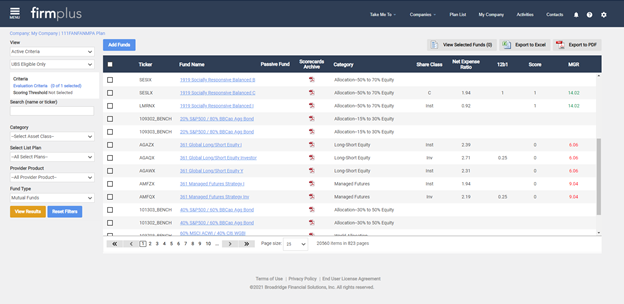
When the UBS Eligible Only filter is applied the output will display only those funds that meet the UBS eligibility criteria.
Configuring Watch & Replace Rules
The Watch & Replace Rules feature is designed to help you batch evaluate investments across Plans and make systematic fund status changes based on rules you set. This will assist you in efficiently making fund status changes and greatly reduce the time and effort required to perform this task manually for each Plan.
When applying Watch & Replace Rules, FirmPlus will utilize the rules saved for the FAID associated with each Plan. Accordingly, you must configure the Watch & Replace Rules for each FAID that is associated with your FirmPlus account. By taking this step you will ensure that when applying Watch & Replace rules the system utilizes the appropriate rules per Plan.
How to Configure Watch & Replace Rules
How to Switch Between FAIDs When Setting Watch & Replace Rules
How to Apply Watch & Replace Rules
Saving Fund Lineup Templates
Fund Lineup Templates allow for you to save a list of funds for easy re-use in the future. This can be handy for proposed lineup templates for prospects, or for saving lineups of pre-screened investment options.
Fund Lineup templates are saved to the Branch that is associated with the FAID that owns a given Plan. What this means is that as necessary you will need to save the Fund Lineup Template for each Branch that is associated with the various FAIDs that are accessible in your FirmPlus account.
In other words, if you have access to a Plan that is associated with an FAID from a different Branch, your existing Fund Lineup Templates will not be available, and you will need to save a new entry.
If you’re not sure which Branch is associated with a given FAID you have access to in your FirmPlus account, please reach out to the Fi360 Support Team for assistance.
Managing Report Templates
Report Templates allow you to save a configuration of report content for quick re-use in the future. This can be very useful if you utilize different types of reports with your clients and prospects such as quarterly reports, annual reports, and supplemental analyses.
When Managing the Report Templates, there are a few things to keep in mind.
- Just as with Fund Lineup Templates above, Report Templates are saved to the Branch that is associated with the FAID that owns a given Plan. What this means is that as necessary you will need to save the Report Template for each Branch that is associated with the various FAIDs that are accessible in your FirmPlus account.
- Given that report templates are saved to the Branch, you may encounter Report Templates that are saved by other users who also have access to FAIDs associated with the same Branch.
- On the Report screen, there are two buttons to be familiar with:
- The Save Configuration button saves the current list of report sections and their order to the Plan so the next time you visit the Reporting screen for that Plan, that configuration is displayed.
- The Save Template button allows you to save a new report template or update an existing template (see below) based on the list of report sections and their order.
- If you need to make changes to an existing report template, you can take the following steps:
- Access a Plan and go to the Investment Monitoring Report screen.
- Load the Report Template you wish to update by choosing it in the Report Template drop-down.
- Make changes to the report sections included and their order in the right-side chosen list of report sections.
- Click Save as Report Template.
- In the pop-up window, enter the current name for the template you want to update. Be sure to enter the exact same name.
- You will be prompted with a pop-up stating "A template with this name already exists. Are you sure you want to overwrite this report template?". Click Overwrite to confirm the update.
If you need a saved report template deleted, or if you’re not sure which Branch is associated with a given FAID you have access to in your FirmPlus account, please reach out to the Fi360 Support Team for assistance.
How To Create a Report Template
Default Evaluation Criteria Settings
Due to the nature of how FirmPlus accounts are configured to support multiple FAIDs that are tied to multiple Branches, and that Default Evaluation Criteria are saved at the Branch level, the Default Evaluation Criteria feature has caused excessive confusion. As a result, we will be disabling this feature when 3/31 investment data goes live. We are currently working to restore this functionality with a better experience that addresses the current limitations.
When this change goes into effect, you will no longer see the "Save Defaults" button on the Evaluation Criteria screen. Additionally, all default criteria settings will be reset. This means that when you configure new Plans in FirmPlus, you will need to be sure to manually set the Plan's evaluation criteria. If you have any questions about this change, please contact the Fi360 Support Team.
Note: This change does not impact any existing Plans in your FirmPlus account that have saved evaluation criteria.
How To Configure Evaluation Criteria for a Plan
Fund Mapping - Review the Recordkeeper Data Feed Overview
The overview article below will help refresh you on how data feeds get setup for a Plan, what the various status indicators mean, and a rundown of the different features on the data feed mapping screen.
Fund Mapping - Setting the Provider Product Filter
When first importing a data feed for a Plan, FirmPlus attempts to map the investment from the data feed to the correct investment within the database. In some scenarios, an exact match can’t be automatically detected based on the fund identifier provided in the data feed.
To help overcome this, setting the Provider Product for the Plan can help narrow down the investment database and improve the chances of an automatic match. Below are links that walk through setting up the filter, as well as how to apply it.
How to Set the Provider Product for your Plan
How to set the Provider Product filter when importing the data feed
Fund Mapping - Updating Investment and Asset Data
Recordkeeper data feeds are updated monthly. If you need to import a new month of investment and asset data for a Plan, reviewing the article below will help ensure you’re aware of how to best complete this task.